


Stop Sharing Live Location on Messenger: 3 Easy Ways

Edited by Caroline Ryan | Oct 15, 2026 | Virtual Location
Are you adept at using messaging apps like Messenger to connect and converse with your people? As the connection with people far from us has never been this easy, sending them your regards is just one tap away. As the modernity of imparting your thoughts and feelings to other people has allowed seamless, quick, and easy communication with modern tech, it is also now possible for users to send or share their live location with the other person in real time. Known as Share Live Location, a feature that is now available to almost all messaging platforms, allowing the other user to have a view of your current whereabouts, whether for navigation or security purposes, it surely comes in handy for a lot of users. Similar location-sharing features can also be found on other social platforms, such as share location on Instagram, where users can share their real-time location with friends and followers.
However, such a feature can ultimately be used against you if mishandled. But fret not, as this article not only provides you with sufficient learning about how live location works and how you can ensure that you stop sharing your live location on the Messenger app for complete safety, but also will teach you an alternative method to fake your location in Messenger for complete anonymity while still using the Messenger app.
Contents:
Part 1. How Live Location Works
Live Location is a feature that allows one’s location to be available and frequently updated as the user moves around in the area at a certain given time. For a messaging platform like Messenger, it is a feature known as an added function to update other users of your current whereabouts without typing much of the details. This is useful for meet-ups, navigation, and a sense of security in situations where you are unfamiliar with your surroundings.
Of course, sharing your live location on Messenger all the time is not always a good thing, as your device location is your personal data, and who likes their current whereabouts to be announced to the public or to other people always available, right? So in the following section, you will learn how to stop sharing Messenger live location effectively and step-by-step.
Part 2. How to Stop Sharing Live Location on Messenger
1. Stop via Chat
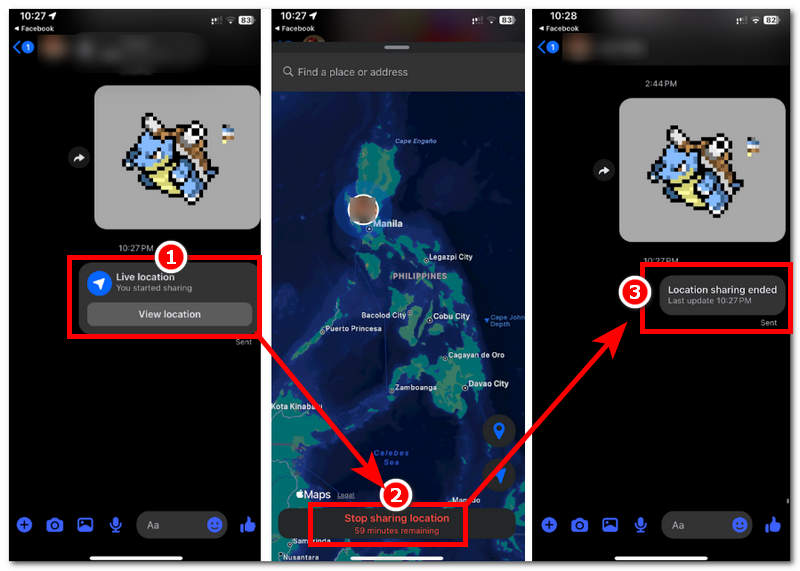
Step 1. Open your Messenger application and head over to the conversation where you previously shared your location.
Step 2. After that, you should be able to see a message tab indicating that you are sharing your live location with the other user. Simply tap on it to proceed.
Step 3. From there, you will see your profile icon pinned on the map where you are currently based. If you wish to stop or end your live location sharing, simply tap on the Stop sharing Location button. Messenger only has a one-hour live sharing duration to protect users' location. Eventually, your live location will end automatically.
Step 4. Once you stop sharing your live location, you will see in your live location message tab that you ended your sharing of location session with the other user effectively.
2. Disable App Permission
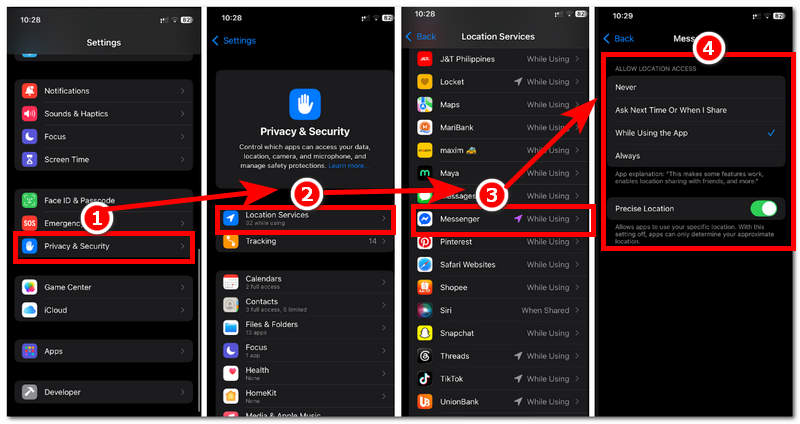
Step 1. Go to your mobile device Settings.
Step 2. In your device Settings, proceed to open your Privacy & Security settings.
Step 3. From there, head over and tap on Location Services, and from the Location Services settings, scroll down, locate the Messenger app and tap on it to proceed.
Step 4. From the Location Services of your Messenger app, you will see two location sharing settings. From there, if you wish to disable the Messenger app's permission to access your location, then simply check the Never option.
3. Device Location Toggle
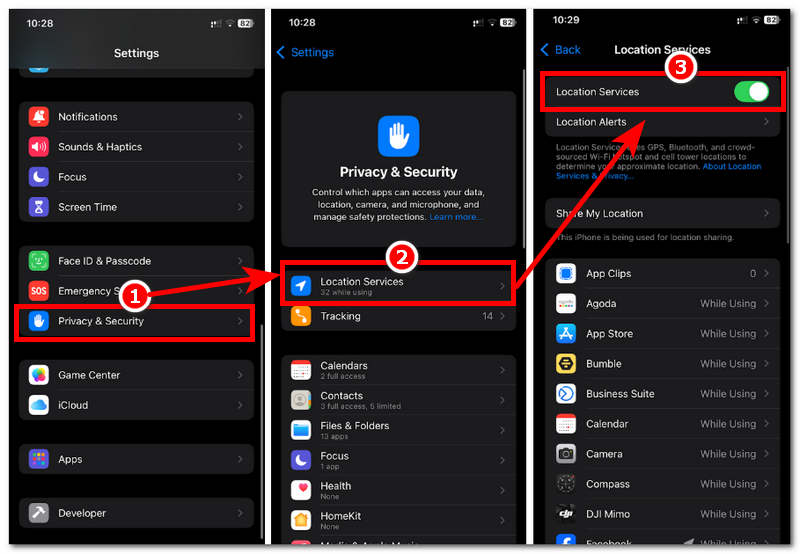
Step 1. Using your mobile device, simply head over to your Settings.
Step 2. Once you are in your device settings, go to your device Privacy & Security settings and from there tap on the Location Services.
Step 3. Under the Location Services setting, simply toggle off the Location Services for your device. This will immediately stop all apps' access to your location data, hence preventing the apps from using and viewing your current location.
Part 3. How to Spoof My Real Location for Privacy on Messenger?
If you are still unsure and overthinking about your location data after doing the three default methods of not sharing your Messenger live location above, then a solution one can opt for is to have complete anonymity of your location by setting up a fake location or spoofing your device location. Spoofing your device location can be done via a third-party tool, just like AnyCoord, a free and guaranteed-to-work location spoofer for location-based games, apps, and platforms like Messenger.
As the default method above only allows users to stop sharing their location on Messenger or completely disable location services access for apps on the device, spoofing your location using AnyCoord can help users achieve the ultimate real location privacy, as the tool helps the user build and set up a temporary location on the user's device, which means that it hides the user's real location and displays a fake one so that the user can still use location-based platforms like Messenger without a problem.
Key Features:
- • It uses accurate GPS mapping.
- • Seamless location change to any place all over the world.
- • It is an undetectable and guaranteed-to-work tool.
- • Safe-to-use tool for Android and iOS.
- • Supports a wide range of location-based apps and games.
- • It has a very user-friendly interface.
- • Fast location-changing and spoofing tool.
- • Lightweight to install and use on the user’s device.
- • It can simulate route movements from one point to another.
- • The route movement is adjustable to the user’s preferred movement speed.
How to Use AnyCoord to Spoof Location
Step 1. Download the AnyCoord software tool on your desktop device (Mac or Windows). Once done, install the software normally and connect your mobile device via USB.
100% Secure & Clean
100% Secure & Clean
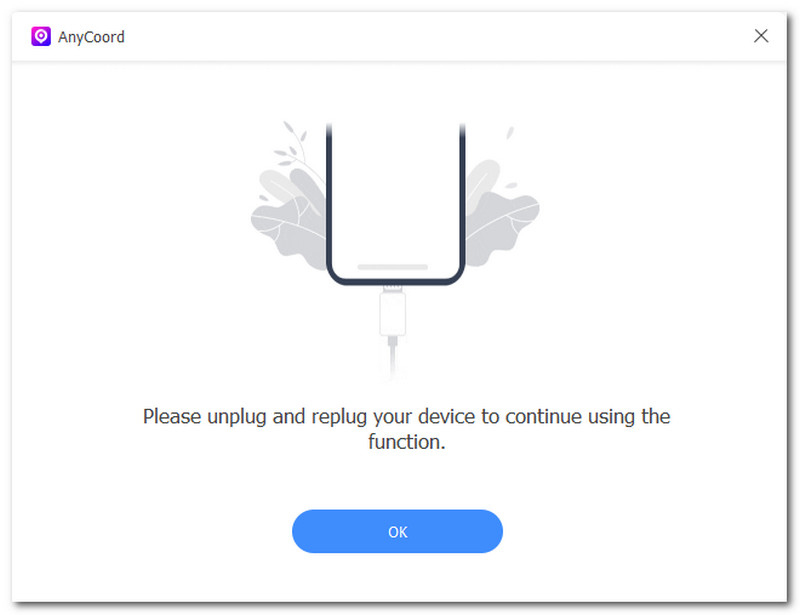
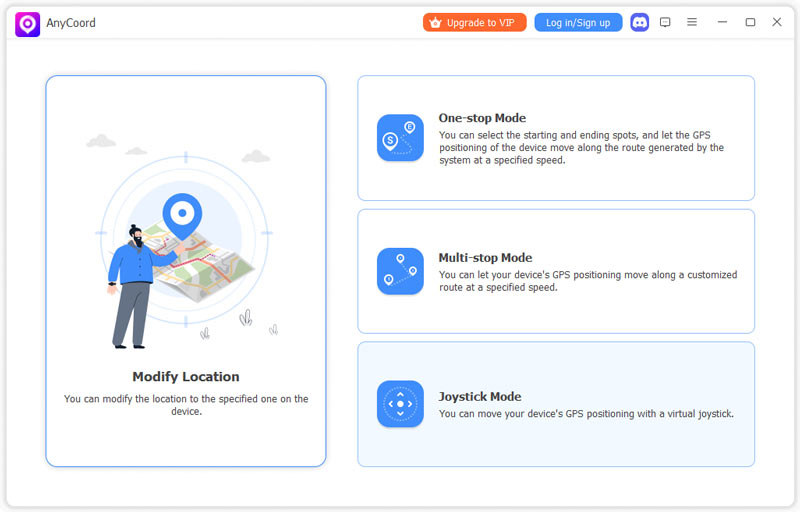
Step 2. Once you have managed to connect your mobile device that has your Messenger app on it and your desktop device together, in the AnyCoord software interface, click the Modify Location feature to proceed.
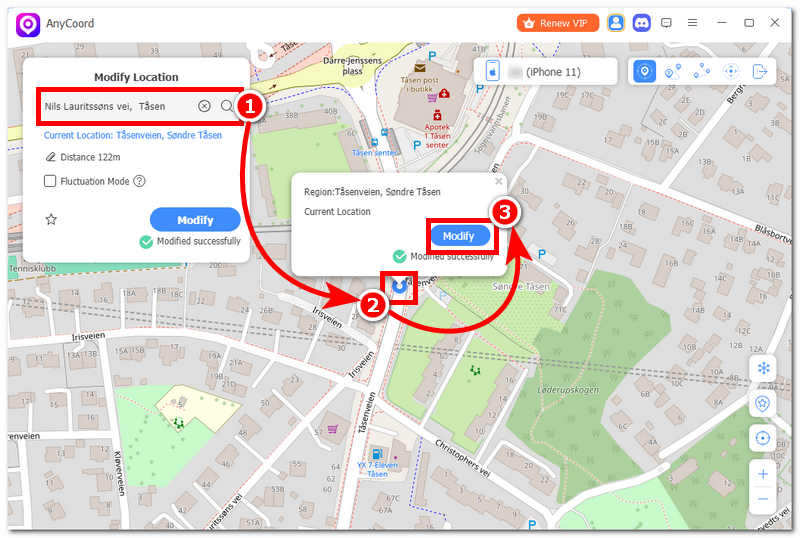
Step 3. After clicking Modify Location, go to the search bar functionality of the tool and search for a new location that you wish to use as your temporary location.
Step 4. Once you have your location set up, click the Modify button, and the tool will automatically change your device location and use the fake one. Hence, when sharing your live location in Messenger, they will see the fake location instead of your real location.
Part 4. FAQs about Stopping Live Location Sharing on Messenger
-
1Can I stop sharing my location before the timer ends?
Yes, users can end live location sharing at any time they want without waiting for the 1-hour duration. This can be done by opening the same share location message and tapping on Stop Location Sharing.
-
2Will the other person know if I stop sharing my location?
The other person will not receive any form of notification that the user has stopped sharing their location, but they can see if your live location is no longer active in your conversation tab, as they will no longer have access to your location.
Conclusion
Sharing your live location in Messenger is a useful and helpful feature that a user can send to another user to give them an update or for navigation. Similar location-sharing functions, including share location on WhatsApp, also help users stay connected across different platforms. However, not all the time should you be sharing your location with just anyone for your safety. As such, this guide uses the opportunity to help users learn how to stop sharing live location on Messenger via the use of the Messenger app, device settings, and the use of a location spoofing tool for a more effective and completely safe hiding of device location data with the AnyCoord software tool.
AnyCoord is the best tool to change, hide, or spoof your location in games, social media apps, and other apps on iPhone or Android devices.
100% Secure & Clean
100% Secure & Clean