



iPogo Not Working Problem: How to Resolve & Its Alternative

Edited by Caroline Ryan | Aug 14, 2026 | Virtual Location
iPogo is a popular and widely used Pokémon GO mod, a spoofing app for Pokémon GO to allow players to progress their dailies in the game without going out of their homes. As Pokémon GO is a game that involves real-time interaction with the player's surroundings, in the long run, players become too tired of going out of their homes just to play the game, but that is the purpose of location-based games like Pokémon GO. As a tool that offers GPS spoofing, auto-walk/catch/spin, teleportation, and enhancing the map, IV checker, and more, it makes iPogo an unofficial tool and not approved by the Pokémon GO developer Niantic to use in playing the game, thus making it prone to problems and crash issues.
As a third-party and unofficial tool, utilizing the tool in Pokémon GO gameplay will have its occasional risks and problems for the player; that’s why experiencing the Not Working iPogo problem is just normal to happen. Thus, this article will elaborate on some common issues why iPogo is not working, list some possible solutions, as well as the use of a much better alternative location spoofer tool for Pokémon GO.
Contents:
Part 1. Common Issue When iPogo is Not Working
In resolving iPogo problems and crashes, it is important to know their root causes; thus, in this section, we will list the most common problems and why iPogo is not working for you.
1. iPogo Outdated Version. This problem is common, as Pokémon GO has an active developer, meaning it has frequent updates or regulates the whole game to fix some bugs and glitches, installing new events or features, and more.
2. Shiny Scanner is Not Working. This problem appears sometimes as an occasional problem for Android users simply because of broken or missing notifications.
3. Pokémon Not Spawning. This problem is common problem among players who love to teleport to locations frequently without exercising safety measures for detection. What happens is that when a player uses the iPogo teleport feature and casually starts exploring or moving in the location, they are most likely to experience this problem.
4. iPogo Failed to Authenticate Problem. This problem causes the player to be stuck in an endless loading bar when opening the iPogo app. This error can be rooted in having a poor internet connection, or potentially the Pokémon GO player account is experiencing a soft ban preventing them from logging in to the app.
5. iPogo Joystick Not Working . If, on the other hand, you managed to open and play the game in iPogo, but your character avatar refuses to move or appears stuck in its location, even after your effort in moving your virtual joystick from your screen. Then you may be experiencing a conflict setting or a temporary glitch.
Part 2. Solutions to Deal with iPogo Not Working
This section will provide solution tips for players who may attempt to resolve the above-mentioned problems of iPogo.
1. Update iPogo. Check the iPogo website for an outdated compatible version of the app and reinstall iPogo on your device. This can be done by going to the iPogo website or entering their official Discord server.
2. Check your Device Notification Settings. If the shiny scanner is not working because the notification is not appearing or is broken for some reason, you may want to check your mobile device notification settings and see if iPogo has the right permission for your device to receive notifications.
3. Exercise Cooldown Timer. To avoid experiencing a soft ban, such as not being able to see Pokémon when teleporting to another location, simply exercise patience. Try not to move or stop all the action upon teleporting, and wait for the timer that appears on your screen to reach zero before moving and starting to explore the area.
4. Check Your Account. If you received a loading screen with the Account Failed to Authenticate error message, your account may be experiencing a soft ban. Usually, a soft-ban can restrict the user account's gameplay activities, making it a little bit harder to play, and it comes with a 7-30 day restriction on the account depending on the number of times the player has been detected. You may also try to restart the app for a possible glitch in iPogo.
5. Check iPogo Settings & Restart the App. If your character is stuck in its location or will refuse to move along with your movement on your joystick, please make sure that you have enabled Indirect Mocking from your iPogo settings, as disabling it will prevent the movement feature from working. You may also try to restart your app and your device, as the problem can also be just the result of a temporary glitch.
Part 3. A Great Alternative for iPogo
What AnyCoord offers for Pokémon GO gameplay is its complete anonymity and account safety, as doing all sorts of activities when utilizing the iPogo app to improve the players' gameplay also increases the chance for their account to be caught and detected by the Pokémon GO anti-cheat system. But with AnyCoord, it can keep their account safe, as it is solely used for moving to other places and easily simulating human movement for hatching Pokémon GO. AnyCoord may not have all extra features in auto-catching and such, but the priority of the player should be on keeping their Pokémonn account safe rather than seamlessly and lazily progressing the game.
Key Features:
• Capable of simulating route movements from one location to another.
• Guaranteed to work on all location-based apps, games, and more.
- Fast to change device location from any location in the world.
• The route movement is customizable to the user's preferred movement speed.
• Users can hide their real device location and use a virtual one.
• Free-to-use tool location spoofer tool.
• It is undetectable and guaranteed to spoof a device location.
• Lightweight to install software tool.
• It has accurate mapping for easy and accurate location browsing.
How to Use AnyCoord to Spoof Location
Step 1. Download and install the AnyCoord software tool on your Mac or Desktop device. Once done, connect your mobile device that has your Pokémon GO app to your desktop device via a USB connection.
100% Secure & Clean
100% Secure & Clean
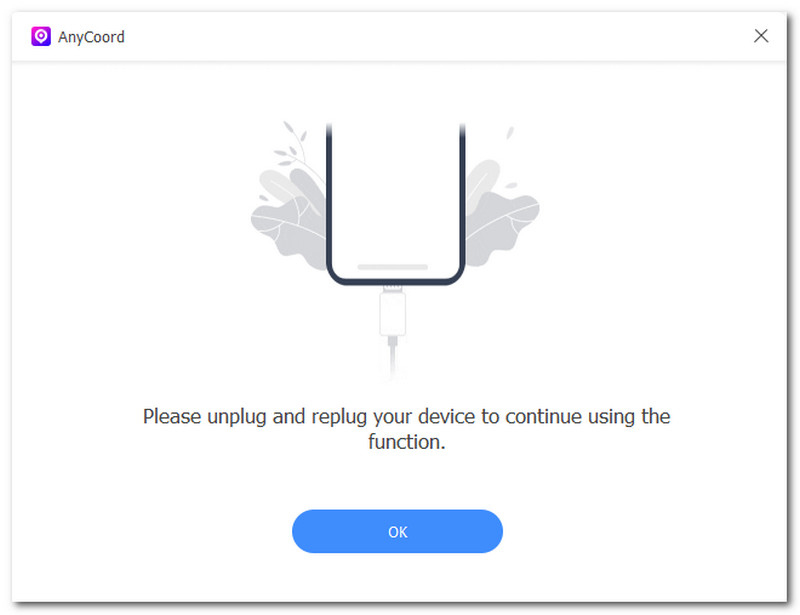
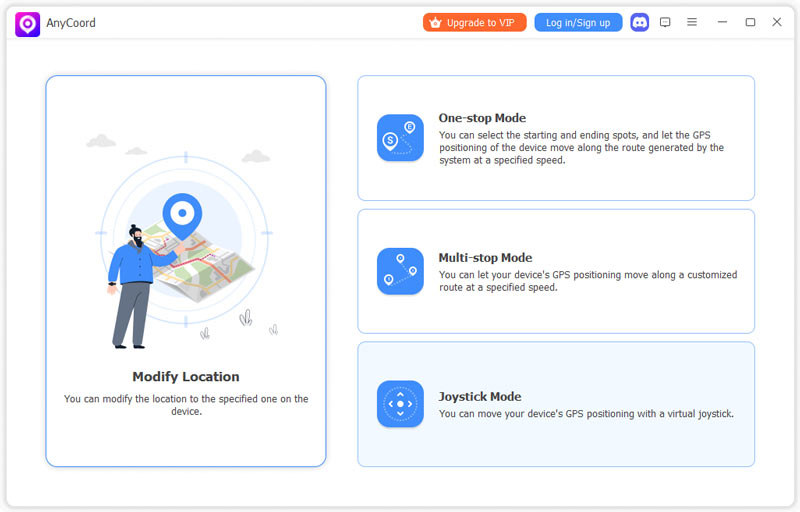
Step 2. Open the AnyCoord software tool and, from its main interface, select the Modify Location feature if you wish to teleport to a location with more Pokémon in your account without going out of your home.
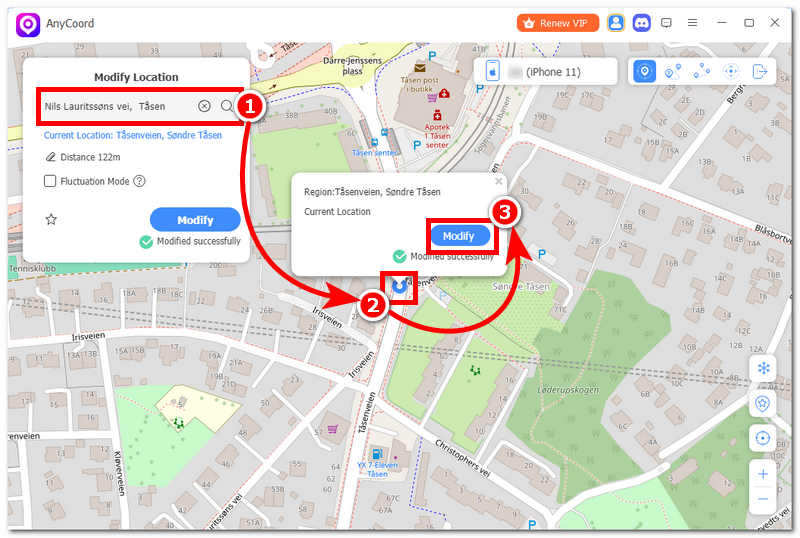
Step 3. After clicking the Modify Location feature, search for the location you want to teleport into using the search bar functionality or simply by dragging across the virtual map in the tool.
Step 4. Once you have found your preferred location to play and hunt Pokémon, click the Modify button, and the tool will automatically change your mobile device location. Thus, when you open your Pokémon GO, you will find your avatar at your chosen location, making your Pokémon GO gameplay a lot easier to catch various Pokémonin different locations as well as moving from one point to another.
Part 4. FAQs about iPogo Not Working
Why is iPogo not working?
There are plenty of reasons and factors why iPogo may not work for you, considering your device type, connectivity, and version of the app. It can also be attributed to occasional bugs and glitches, as iPogo is not an official app, making it more challenging to work on various devices.
Why is iPogo crashing on startup?
A crashing startup of iPogo problem can be rooted in having an outdated version of the app, the installation files have been corrupted, the player device storage is running low, or simply a compatibility version issue with Pokémon GO and iPogo.
How do I know if iPogo is down?
One thing players need to immediately know is whether iPogo is down when the app's feature suddenly stops working at the same time. This may be due to Pokémon GO enforcing new updates that will require iPogo to also update to be able to work alongside the game.
Can I use a location changer to change location on Tinder?
Yes. A location changer tool can help users adjust their virtual location on location-based apps. Besides Pokémon GO, some users also use location-changing tools to explore different locations on apps like Tinder. However, users should always check the app’s terms of service and use such tools responsibly.
Conclusion
This article has listed the most common root causes for when players have been experiencing the Not Working problem in iPogo. As well as listing a solution, players may need to perform or do something to check if the problem or error is just a glitch or an error on the app itself. But regardless, there is also another tool that can help users avoid experiencing repetitive problems in progressing their Pokémon GO gameplay virtually by using the guaranteed and safe-to-use AnyCoord location spoofer tool to allow Pokémon GO players to virtually head to different locations as well as simulate a movement from one place to another.
AnyCoord is the best tool to change, hide, or spoof your location in games, social media apps, and other apps on iPhone or Android devices.
100% Secure & Clean
100% Secure & Clean