



Location Change on Mac Via System Settings & Software Tool

Edited by Caroline Ryan | Aug 14, 2026 | Virtual Location
Have you ever wondered how one can manage and keep their device location safe while still being able to use its location services without a problem? Well, you are not alone, as location safety is among the concerns of users regarding their device usage. It is impossible for one to have access to platforms and applications without using the user's location data, especially those platforms that heavily require location access. As such, a solution is proposed: one may want to try to be able to hide or change the location of the device effectively while still being able to access and use location-based apps and platforms.
Furthermore, it is not a secret that it is possible to change or spoof a device location, and in this article, we will show you two ways on how you can change location on a Mac device using a default system setting method and the use of a third-party safe-to-use location spoofer tool.
Contents:
Part 1. Can I Change My Location on My Mac?
At a surface level, yes, users can change or have access to their Mac device location settings to perform basic location adjustments. On the contrary, there are only certain limitations that Mac or Apple allows its users to adjust regarding the user device location, and completely hiding or changing the device location is not possible.
As Apple devices, such as macOS devices, don't have GPS spoofing support, there are ways one can try to have a similar effect on their devices. One involves allowing users to decide or choose which certain applications can access the user's location through the location services settings.
If you are wondering why there is a need, or there are users who like their location hidden when accessing various platforms, it can be rooted in three categories. First, users need to hide or spoof their device location to use a fake one to access geo-restricted content or services. Secondly, users are exposed to testing of the application in various locations to see the usability of the app in different locations without having to go to different places. And lastly, for safety purposes, protecting the device location from apps and websites that access the device's real-time location.
Part 2. How to Change Location in Mac Using System Settings
Apple doesn't support the actual changing the Mac device location. What macOS users can do is just adjust or modify their Location Services settings. In this setting, the user can find all the apps and platforms that use the device location. Thus, users can also turn it off when not needed to ensure that the system does not use or have access to their device's real-time location all the time.
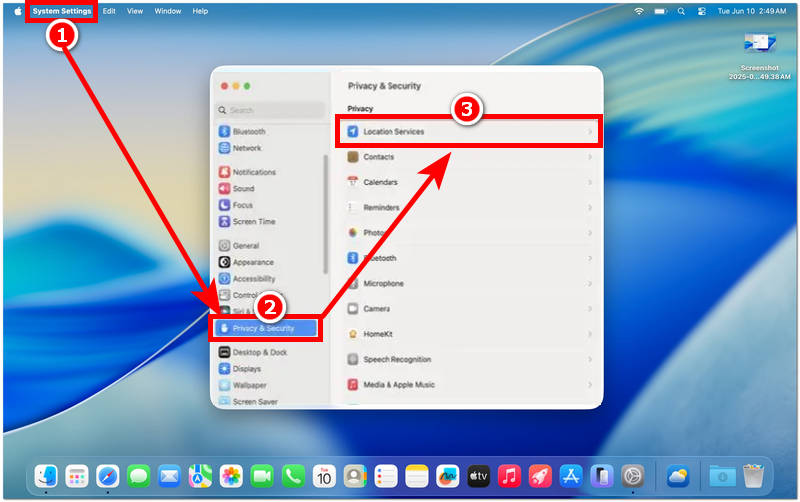
Step 1. Using your Mac device, head over to your device's System Settings.
Step 2. From your Mac System Settings, proceed to your Privacy & Security settings.
Step 3. From your Privacy & Security settings, click on Location Services.
Step 4. From your Location Services, browse your device applications and check which of them you wish to turn off their location services access.
Part 3. An Ideal Way to Change Location on Mac
If you really want to completely change your device location using your Mac device to fully use a fake or virtual location to still be able to use various apps, then the use of a third-party location spoofer tool like AnyCoord is the tool you will need to achieve complete device location anonymity. AnyCoord is a lightweight software tool that allows users to have complete control over their device location settings, giving them control in setting up a fake or virtual location, simulate a walk movement, and custom route movement to hide the user's real location under a fake one while the user can access and use all types of location-based apps, services, platforms, and more without having a problem. This tool is most commonly used for dating applications, location-based games, and accessing location-restricted content on streaming platforms. It also allows users to change their iPhone location virtually.
Key Features:
• It uses accurate GPS technology for accurate location mapping.
• It supports location access all over the world.
• It is designed to provide a reliable location-changing experience.
• Safe-to-use tool for Mac and Windows devices.
• It supports all location-based apps, games, and platforms for use.
• It has a very user-friendly interface.
• Fast location-changing and spoofing tool for changing Facebook location and more.
• Lightweight to install and use on all devices.
• It can simulate route movements from one point to another.
• The route movement can be customized to provide a more human-like simulation.
How to Use AnyCoord to Spoof Location
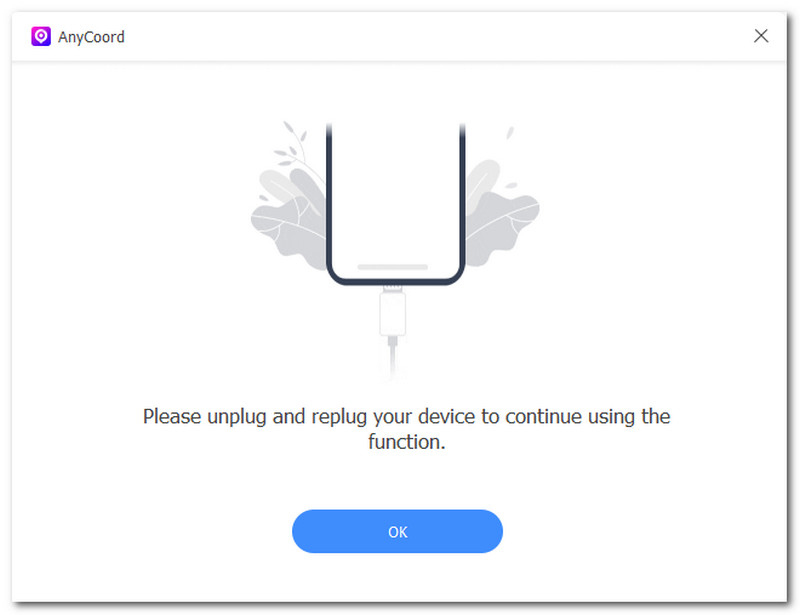
Step 1. Download the AnyCoord software tool on your Mac device. Once done, proceed to install and open the software from your Mac and connect your mobile device to which you wish to completely change its location temporarily via USB connection.
100% Secure & Clean
100% Secure & Clean
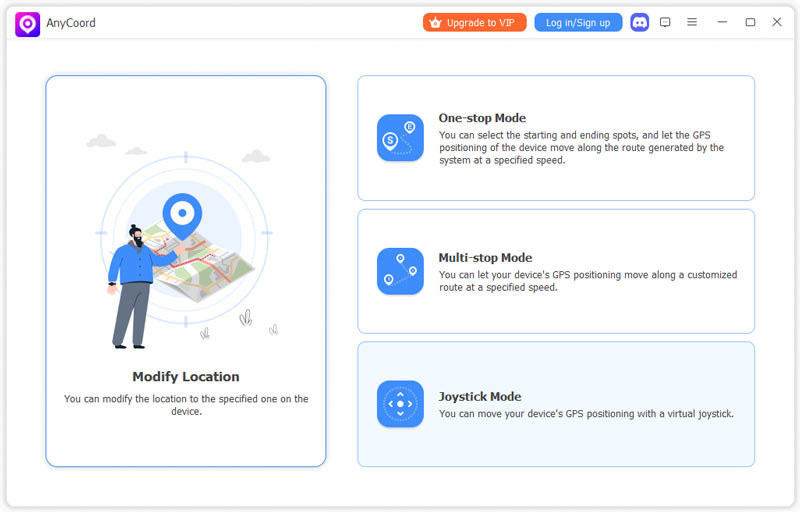
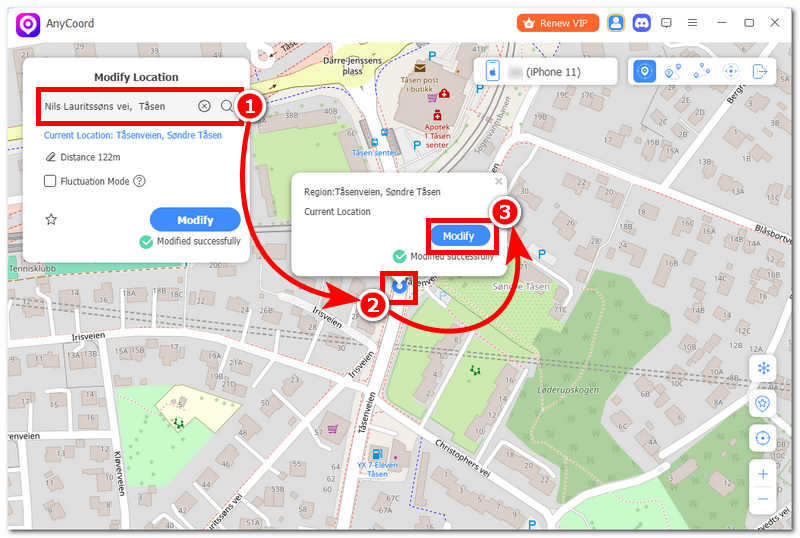
Step 2. Once you have managed to connect your mobile device and Mac device together, in the software tool's main interface, click the Modify Location function to access its location-changing features.
Step 3. After clicking Modify Location, use the search bar function situated in the upper-left corner of the tool to search for the location you wish to use in your mobile device as its visual location to hide your real location and be able to access and use your device's location-based apps and platforms.
Step 4. Once you have your location set up, click the Modify button, and the tool will change your device location to the one you just entered.
Part 4. FAQs about Change Location on Mac
-
1How do I change my region settings on Mac?
To change your Mac device region, you may do so by heading over to your System Settings' Language & Regions section. From there, locate the area where your current Region is located and from there click on it to access a dropdown menu, and from there select your preferred Region; then simply restart your device to make the changes to take effect on your Mac.
-
2Why is my Mac showing the wrong location?
A Mac may show inaccurate or the wrong location for a lot of reasons, but mainly, these are: when your Mac uses a wrong Wi-Fi-based location, you are using a proxy service to change your device location, your Mac device may have outdated network information, and lastly, your Mac location services may have been disabled or turned off.
-
3How do I stop websites from tracking my location on a Mac?
Firstly, users should be careful and give websites and apps permission to access their device location. This can be done once the user opens the app or goes to the website for the first time. The user may also directly disable access to other location services for their browser through the device Location Services setting.
-
4How to fix Mac location services not working?
If your Mac device has encountered a location not working or a similar problem, you may do the following common fixes: Check your Mac location services if it's enabled, check your internet connectivity, try updating your macOS (If available), and restart your Mac device.
-
5Is it safe to change my location on Mac?
Changing your Mac location in system settings may be the safest method of the two methods in this article, but it does not guarantee a complete change of device location; it only allows users to have control over which apps get access to their location services.
Conclusion
Device location is an important function and feature of a device that allows users to have the best internet browsing experience. This is used by many platforms and location-based apps to filter and organize relevant data for users to engage with. However, as it is a good thing that a location device can do that to improve the user experience, not everyone wants their location to be used all the time. That’s why they opt for an alternative way to effectively hide or change location on Mac while still being able to use various location-based services through the help of either a default or third-party method.
That's why this article used this opportunity to not only reveal the method of how one can achieve a similar location change effect using only the default method of their Mac settings, but also the use of a free-to-use and safe location-spoofing tool, AnyCoord, to allow users to get their hands on a working location spoofing tool for their device location anonymity.


AnyCoord is the best tool to change, hide, or spoof your location in games, social media apps, and other apps on iPhone or Android devices.
100% Secure & Clean
100% Secure & Clean