


How to Share Location on Messenger: Live and Static Location

Edited by Caroline Ryan | Oct 15, 2026 | Virtual Location
Messenger, a popular free messaging platform by Meta, allows users to connect with friends and families worldwide via chat, calls, and the sharing of media files, fostering relationships and connections among users. As a platform for instant communication, it now has all sorts of features and functions that take the conversation between users to a new level. Taking for an example is the Messenger’s feature on allowing users to share their location, and it can be done via sharing of live location or a static location, which makes updating the other user about the current whereabouts more seamless and easier. As sharing a location on Messenger can be used for navigation, directions, or updating the other user, knowing how to do it and learning the difference between live location and static location through this guide will help you maximize your Messenger share location features.
Contents:
Part 1. How to Share Live Location on Messenger
Live Location on Messenger is a feature that allows users to share their current location with the other party. This feature has a 1-hour timer duration, as it shares and updates the location every time the user who shares their live location moves from one place to another. Similar real-time location-sharing functions are also available on other messaging platforms, such as sharing live location on Telegram, which allows users to send their updated whereabouts to contacts. Thus, it can be stopped at any time the user decides to stop sharing their location as a form of safety measure for their location data.
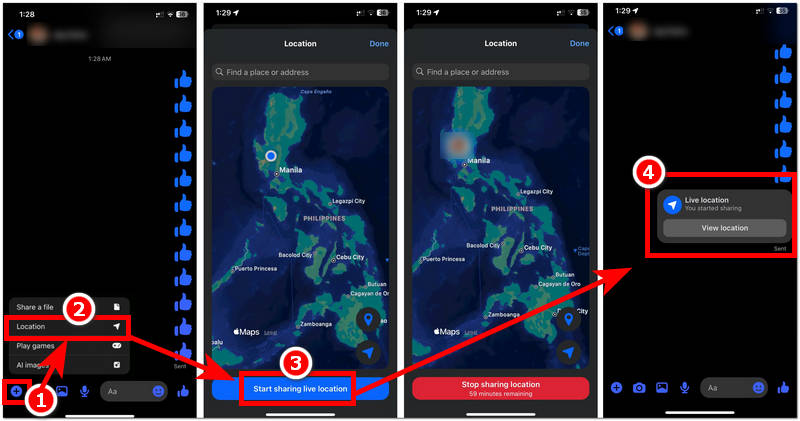
Step 1. Using Messenger on your Android or iOS device, open the app, then head over to the conversation with which you want to share your live location.
Step 2. On the conversation tab, tap on the + button situated in the lower-left corner of your chat box, and from there, proceed to Location to access the Share Live Location option.
Step 3. From there, tap on the Start Sharing Live Location button, and the 1-hour time duration will start, indicating that you are now sharing your live location with the other person in the conversation.
Step 4. After sharing your Messenger live location, you will be able to see the status of your live location sharing in your conversation box. From there, you can also end the sharing of your live location without waiting for the timer duration to end.
Part 2. How to Share a Static Location on Messenger
Static Location on Messenger is the term used to differentiate live location sharing from just sending a pinned location to the other user. Similar to how users can share location on iPhone through text, this method only sends a selected location rather than continuously updating the user's real-time movements. What it does is that it does not update or show your real-time location to the other user, but only a pinned area of the location that the sender pinned. This is perfect as an alternative to not wanting to reveal your real location for an hour, as the user can just pin a location and move to another location without the other user noticing.
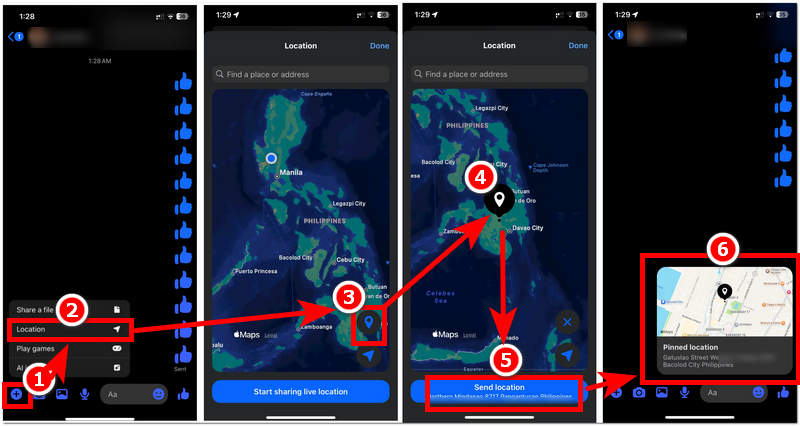
Step 1. On your mobile device (Android or iOS), open your Messenger app and, from the app interface, simply head over to the conversation box you wish to share a static location with.
Step 2. Once you are in the chat box of the person you wish to send a static location to, simply tap on the + icon from your chat box pane, and from there tap on the Location section to access the Pinned Location feature.
Step 3. When you tap on the Pinned Location icon that is situated in the lower-right side of the map, simply scroll or browse for the location on your map that you want to pin. Once you are satisfied and sure of the location you just pinned, to send it to the other user in the conversation, simply tap on the Send Location button.
Step 4. After sending the pinned location or static location, there will be a pinned location bubble message in your conversation, and when you click it, it will show the location of what you pinned previously.
Part 3. Bonus: How to Share a Virtual Location in Messenger
On the other hand, if you somehow want complete anonymity regarding your device location services in general, then a method that can help you achieve that is by setting your mobile device (Android or iOS) to a virtual location, like the AnyCoord location spoofing software tool.
What a location spoofing tool such as AnyCoord can do for your mobile device is that it can help the user keep location data hidden as it replaces it with a fake location the user preferred this is not only useful for sharing a virtual location in the Messenger app but also allows users' location-based apps and games to function and be accessible to the user even if they are using a fake location.
Key Features:
- • It has a very user-friendly interface and is free to use.
- • Fast location-changing and spoofing tool.
- • Lightweight to install and use on the user’s device.
- • It is a location spoofing tool that has accurate GPS mapping.
- • It can simulate route movements from one point to another.
- • The route movement is adjustable to the user’s preferred movement speed.
- • It has access to any location in the world.
- • It is an undetectable location spoofer tool.
- • Safe-to-use tool for Android and iOS.
- • Supports a wide range of location-based messaging apps, games, and more.
How to Use AnyCoord to Spoof Location
Step 1. Download the AnyCoord software tool on your desktop device (Mac or Windows). Once done, install the software normally and connect your mobile device that has your Messenger app on it via a USB connection.
100% Secure & Clean
100% Secure & Clean
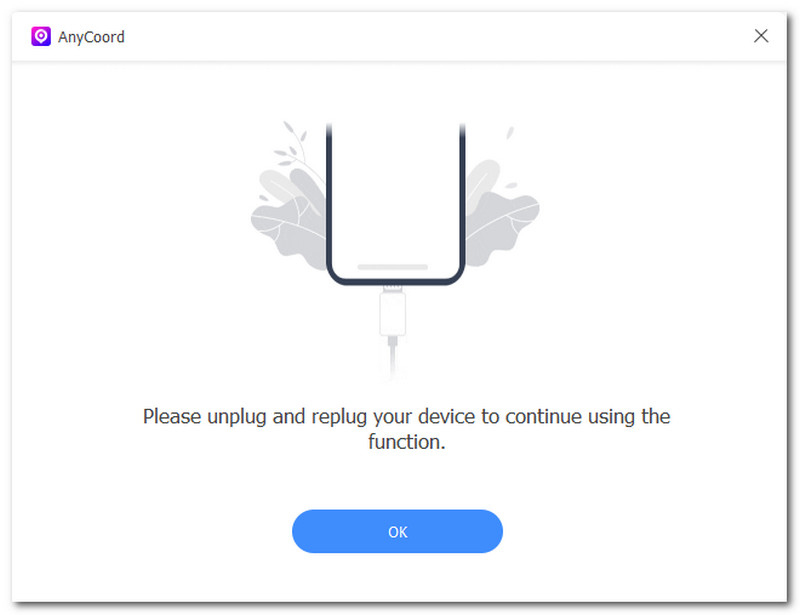
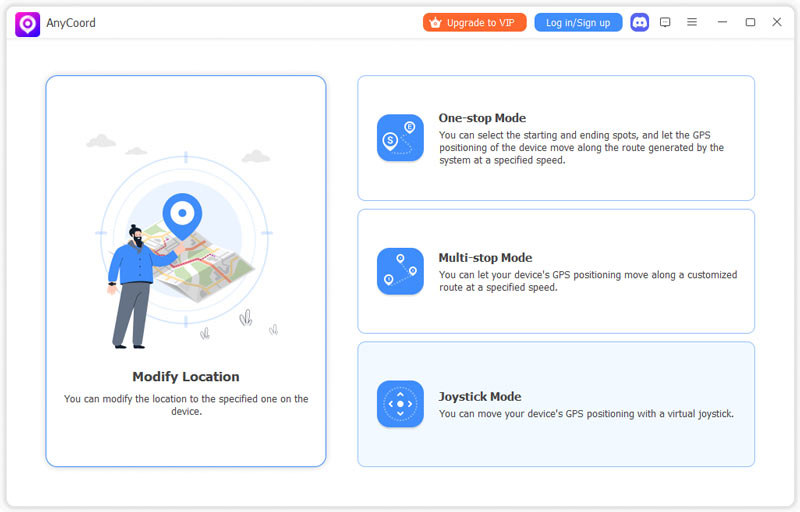
Step 2. Once you have managed to connect your mobile device that has your Messenger app on it and your desktop device together, proceed to open the AnyCoord software. After opening the tool, simply click the Modify Location feature on its main interface to proceed.
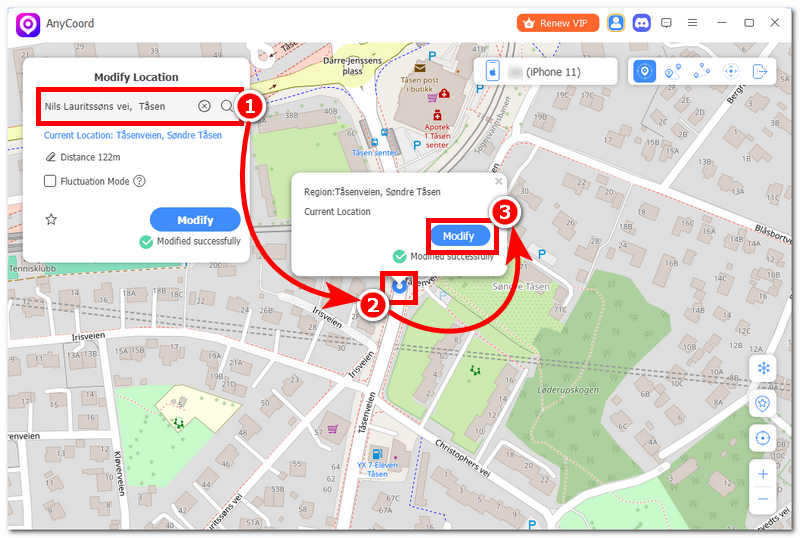
Step 3. After clicking the Modify Location function, search for the location you wish to use as a virtual location for your Messenger by using the search bar function located in the upper-left corner of the tool.
Step 4. Once you are satisfied with the virtual location you set up, click the Modify button, and the tool will automatically change your mobile device location and use the virtual location. From there, feel free to use your Messenger app to your liking, and you may also use the sharing of location feature, but the thing is, it uses the virtual location instead of your real location.
Part 4. FAQs about Sharing Location in Messenger on Android
-
1Why can't I find the Location option in Messenger?
An underlying reason why there isn’t a location function in the Messenger app is possibly that the user is using an outdated version of Messenger, or the location permission is turned off in the device settings.
-
2Does Messenger require GPS to share my location?
Yes, it needs the user’s device GPS, Wi-Fi, Bluetooth, and mobile network to accurately determine and map out the device location.
-
3Why is my shared location inaccurate?
An inaccurate location can be due to a weaker GPS signal on the device, a poor network connection, or the device's high-accuracy location mode being disabled.
Conclusion
In this guide, users learn the difference between live location and static location functions of Messenger, and additionally, this guide is a step-by-step guide on how to share location on Messenger on an Android or iOS device. As sharing location is a useful tool within the messaging platform for hassle-free location updating or navigation, this guide also adds a method for when the user wishes to achieve complete anonymity of their location through the use of the free-to-use location spoofing tool AnyCoord, which is easier and faster for setting up a virtual location in the likes of location-based games and apps like Messenger.
AnyCoord is the best tool to change, hide, or spoof your location in games, social media apps, and other apps on iPhone or Android devices.
100% Secure & Clean
100% Secure & Clean