Sorry, this product (or service) is currently unavailable to users in this region due to local regulations. We appreciate your understanding in this matter.

Edited by Caroline Ryan | Oct 15, 2026 | Virtual Location
Life360 is a location-based platform that is used by families to set up a real-time location-sharing platform among family members for safety and navigation purposes. Among the location-sharing features that make it helpful for families is its accurate real-time GPS tracking that allows family members to track or view each other’s location in real time without delay, driving reports to know if one is driving or in the vehicle, as well as its emergency alerts that notify the family members when an emergency happens. Life360 helps ease the minds of families by simply knowing where they are; however, as can be seen on the positive side, some family members don’t want their location to be seen all the time. That’s why Life360 developed a feature that allows members and users to temporarily hide their location without bypassing their device.
In this article, we will delve into an overview of the Life360 Ghost Mode feature, show you the steps on how to enable and disable it, the limitations of using it, as well as the use of a third-party location spoofer tool that has a much stronger Ghost Mode function similar to Life360 as an alternative tool for your device location spoofing in your Life360 app.
Contents:
The Ghost Mode feature in Life360 is the term used for temporarily hiding or pausing the user’s location from being shown to other users or family members.
Does Life360 have ghost mode? While the term Ghost Mode is not directly used in the app, as the term popularly originated on Snapchat, people just started calling it that way, as Life360 allows users to pause their location, which is visible to other members.
How do you turn on Ghost Mode on Life360, or turn it off? Both share the same steps, as the user only needs to toggle on or off the slider button of their location sharing settings within the Life360 app. Some users also look for ways to pause Life360 without anyone knowing, but it is important to understand how location-sharing settings work before making any changes. For a more thorough step-by-step navigation, simply refer to the steps below.
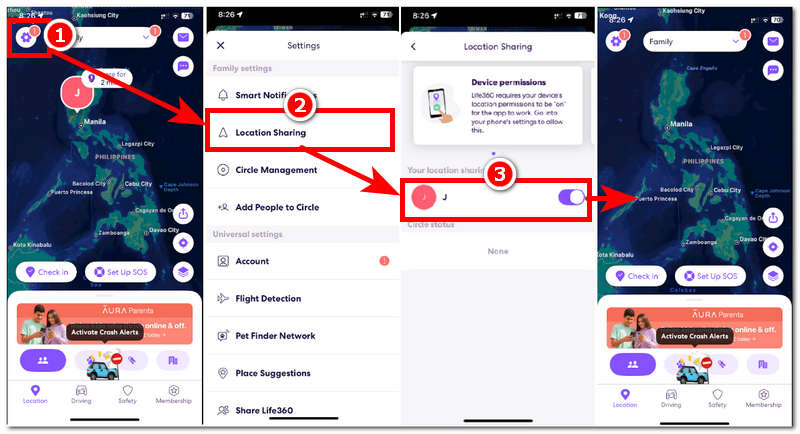
Step 1. Assuming that you already have an account, have fully set up your Life360 app, and have a location-sharing channel with your family or circles. Open the Life360 application from your mobile device and head over to your Settings situated in the upper-left corner of your Life360 app interface.
Step 2. Within the Settings tab, tap on the Location Sharing Setting, and from there, you will be able to see the status of your profile location sharing.
Step 3. If the slider is on the right side, it indicates that you are sharing your location; to disable it, simply toggle it off.
Step 4. From there, upon heading back to the main interface of the app, you will see that your profile bubble is nowhere to be seen on the map. That just means that you stopped sharing your location with the channel members. If you want to enable and turn your location sharing back on, simply follow the same steps.
As Ghost Mode functionality in Life360 has a very direct approach in dealing with sharing location, it comes with certain limitations, which will be elaborated in this section.
If you wanted to be able to continuously see the other channel members' locations without turning your location sharing off and notifying them, then a method you may use is to use a safe-to-use third-party location spoofer tool like AnyCoord. Many users searching for fake location on Life360 are looking for a way to manage their privacy while using location-based apps. This tool helps you set up a temporary virtual location in your Life360 so that you may discreetly go to other places while the other members cannot see your real location. What this tool does is it can help you set up a temporary virtual location in your Life360 so that you may discreetly go to other places while the other members can not see your real location. This can be done by using a fake location that the user has selected. Another is that AnyCoord has a feature that allows users to simulate human movement to make it more realistic that the user is indeed moving at a human pace.
Key Features:
How to Use AnyCoord to Spoof Location
Step 1. Download and install the AnyCoord software tool on your Mac or Desktop device. Once done, connect your mobile device that has the Life360 app to your desktop device via a USB connection.
100% Secure & Clean
100% Secure & Clean
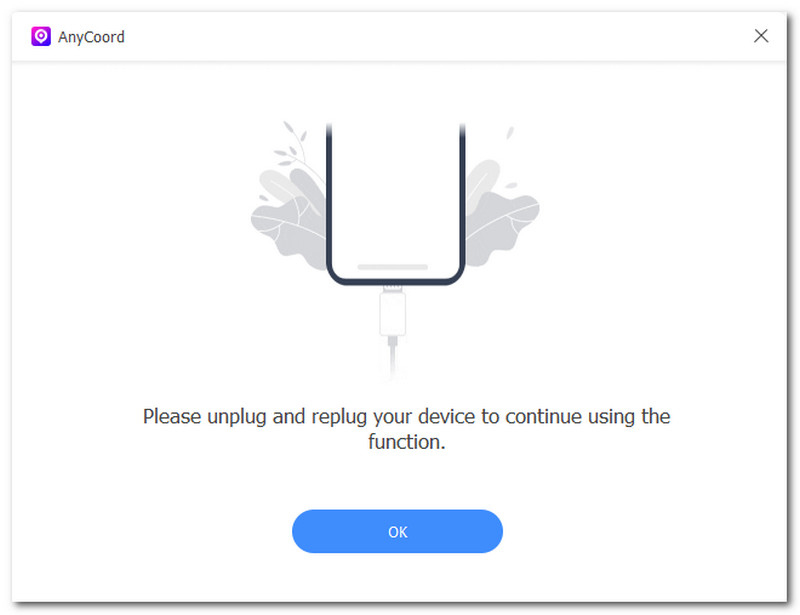
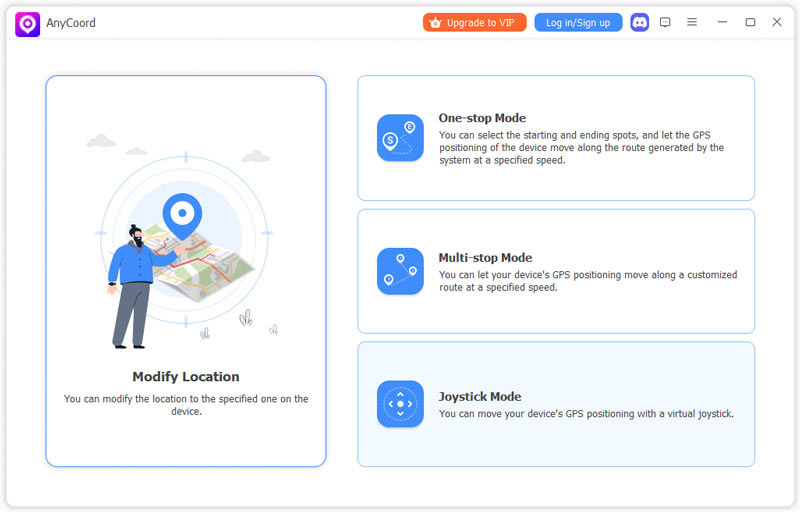
Step 2. Next, open the AnyCoord software tool and, from its main interface, click on the Modify Location feature to proceed.
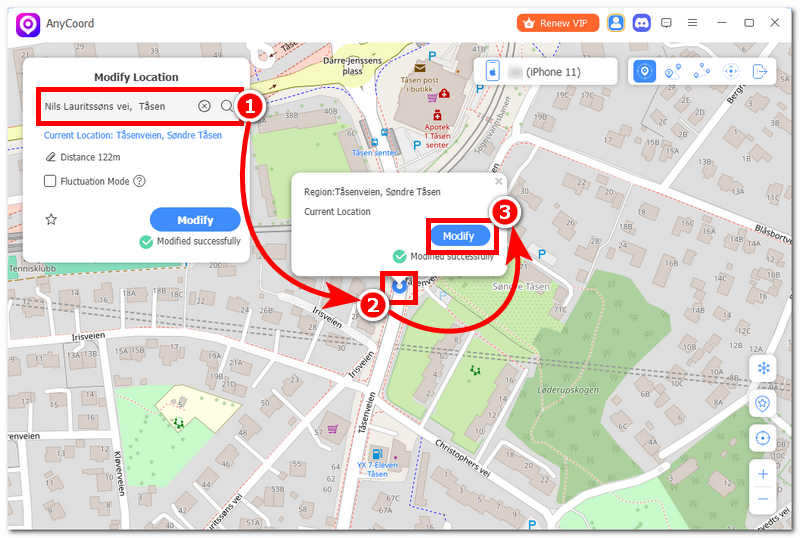
Step 3. After clicking the Modify Location feature, search for the location you want to use as your Life360 temporary virtual location using the built-in easy search bar field situated in the upper-left corner of the tool.
Step 4. Once you have found a virtual location, click the Modify button, and the tool will automatically change your mobile device location. Thus, when you open your Life360 app, you will see that your profile bubble is found at the location you entered with AnyCoord, making your real location hidden while also not notifying the other channel members of your current whereabouts or disabling your location from them.
1Can other people tell if I'm using Ghost Mode?
In the context of the Life360 app, people can tell that you entered Ghost Mode, as they will be able to see that your profile bubble on the map has just vanished, indicating that you have currently turned your location sharing off.
2Is Ghost Mode available for free?
The Ghost Mode function, or the feature that allows users to stop sharing their location on the Life360 app, is available to free and premium users. Just like other location-sharing apps and platforms, it is the right of the user when to share and not their location, as their device location is their personal data, so it is just right that such a feature is available for free and premium users.
This article has confirmed that while Life360 doesn’t have a Ghost Mode button on its app, it has a feature that has a similar function, which people have just started labeling as Ghost Mode. In addition, while it allows users to control when to share and not share their location with members, disabling location sharing comes with certain limitations. Thus, for a more Life360 app Ghost Mode effect on your mobile device, it is safe to use a third-party location spoofer tool like AnyCoord, as it can hide your mobile device location completely while also setting a virtual location so that the other members in the Life360 app can not tell that you just stopped sharing your location with them.
AnyCoord is the best tool to change, hide, or spoof your location in games, social media apps, and other apps on iPhone or Android devices.
100% Secure & Clean
100% Secure & Clean