



Freeze Location on Find My iPhone Using 6 Easy Ways

Edited by Caroline Ryan | Jul 24, 2026 | Virtual Location
Are you the person who takes your data privacy very seriously? And as a mobile user, you can't help but allow your data to be used, especially location data, to help you effectively utilize online services, whether for navigation or an algorithm that helps your browsing experience better. But what if there's a way for you to still use location services without your actual location being used by these platforms at all times? Well, if you are wondering, in this article, you will learn how you can freeze your location specifically using your iOS device's built-in application, Find My iPhone. With these, you will learn five default methods for freezing location using the Find My iPhone app, as well as the use of a location freezing software tool for more effective and controlled location spoofing needs.
Contents:
Part 1. Can You Freeze Location on 'Find My iPhone'?
Can you freeze your location on Find My iPhone ? Yes, it is possible to freeze one's location, but it is not something that most people thought of when considering location freezing on an iOS device. Usually, what freezing location does is it keeps the iOS user device location in a fixed location while the user can continuously use the device normally, even moving from place to another, without the virtual location of the device being updated.
As Apple is known for having tight security and secured functionality, it doesn't allow literal freezing of the device location nor have a feature for it, as iOS devices automatically update users' real location in real-time as long as there is a stable connection. However, there can be a wise way to bypass iOS location using only the built-in settings and functionality of the device which will later on be more elaborated in the following section of this article.
Part 2. How to Freeze Location on 'Find My iPhone'?
Regarding multiple default ways in how to freeze your location on Find My iPhone, there are 5 workable ways we have cited in this section. Thus, if you want, you may use it as your guide to effectively perform location freezing on your own.
Disconnect the Network
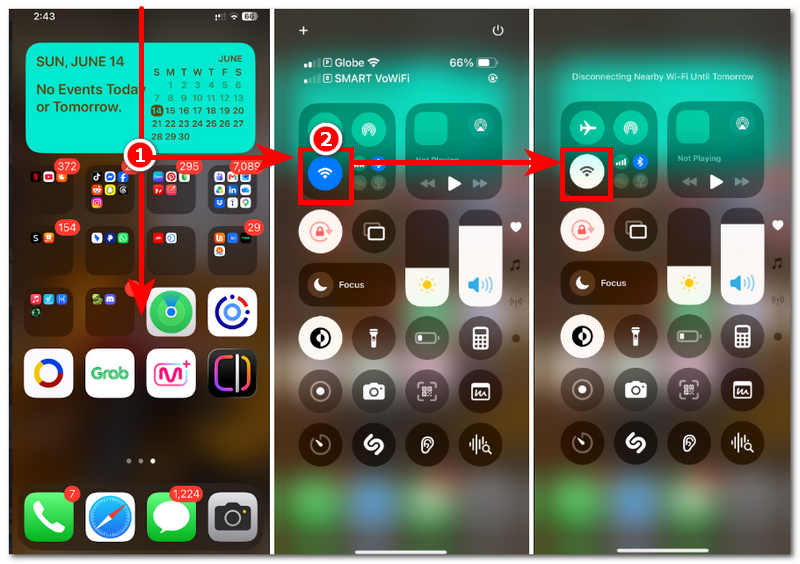
Step 1. In your iOS device homepage, access your quick navigation settings by swiping your fingers down from the top of your screen.
Step 2. Once the quick navigation setting appears on your screen, simply turn off your WIFI. Turning it off will allow your device to freeze your location, and it cannot update to your real location as long as it is not connected to the internet.
Turn on Airplane Mode
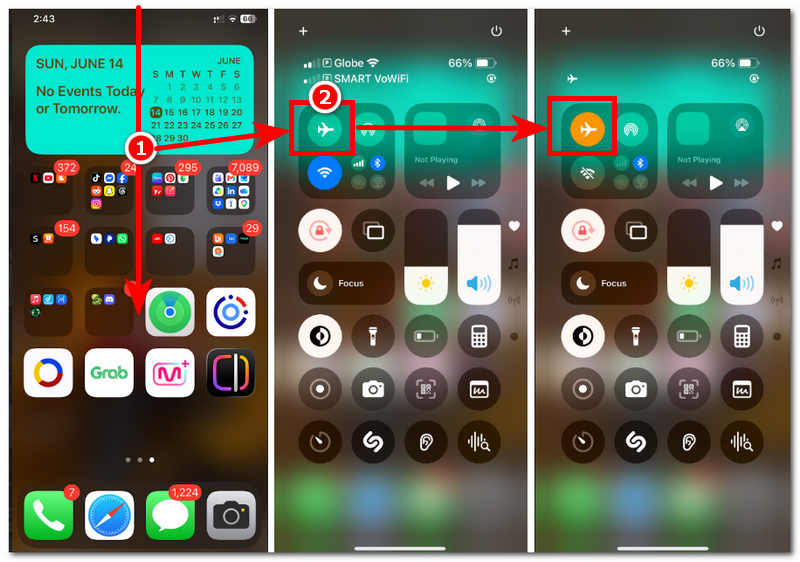
Step 1. Following the same steps with disconnecting your network, simply access your quick navigation settings from your iOS device.
Step 2. Once you have opened your quick navigation settings, simply tap on the Airplane Mode icon, and when it's turned orange, that means you have successfully turned on the Airplane Mode. Doing this will cut off your location services in real time.
Turn Off “Share My Location” in Find My
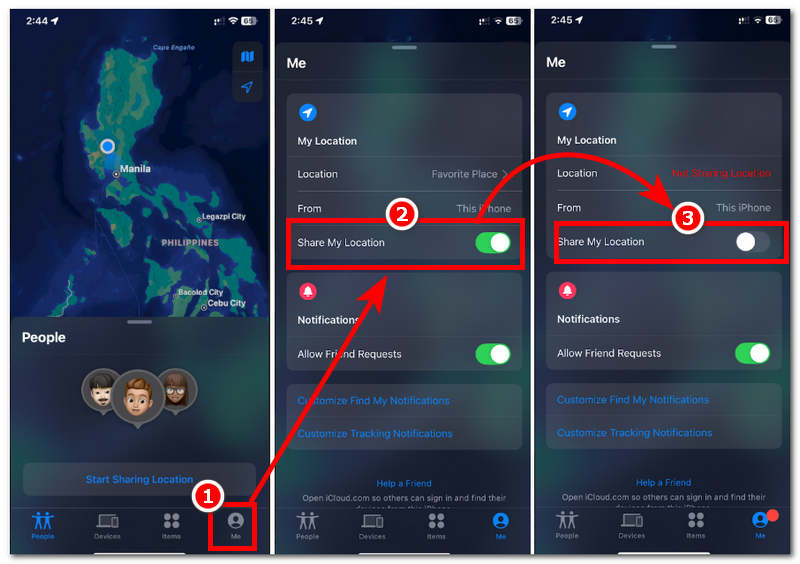
Step 1. Using your iOS device 'Find My' App, simply open the app from your device, and once you are in the app's interface, simply tap on the Me profile situated in the lower-right part of your screen.
Step 2. Once you access your Me tab, simply locate and tap on the slider button of the Share My Location option from your Me tab to turn off your location. In doing this, you immediately stop sharing your location from your Find My app; thus, it freezes your location in the app to the last location it recognizes as your location.
Disable Location Services
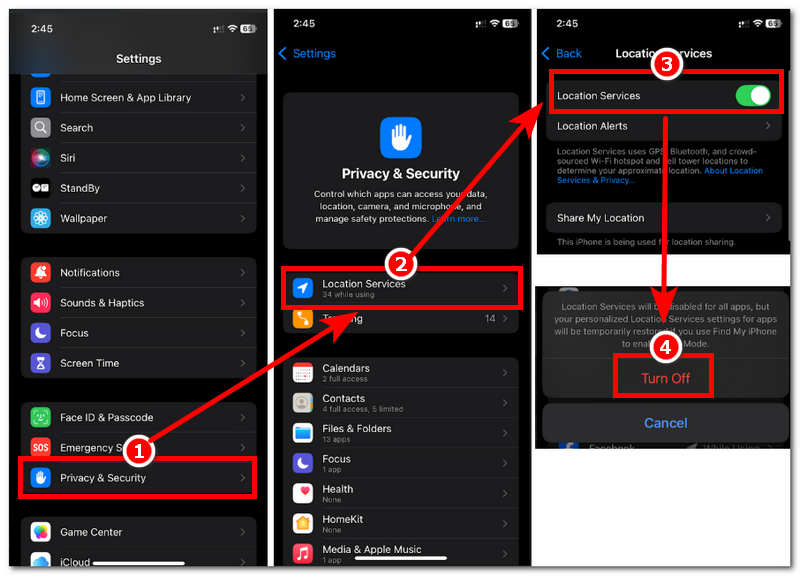
Step 1. To turn off your iOS device's location services, simply head to your device settings.
Step 2. From your Settings, scroll your way down and tap on the Privacy & Security setting of your device.
Step 3. From your Privacy & Security settings, tap on your Location Services tab. After tapping that, you will be redirected to your device location services settings, containing all the platforms and applications that have your permission to use your location service.
Step 4. You may open each specific app and turn off its location services access, or, in this matter, generally turn off the Location Services slider to stop all access to your Location services.
Sign Out Apple ID
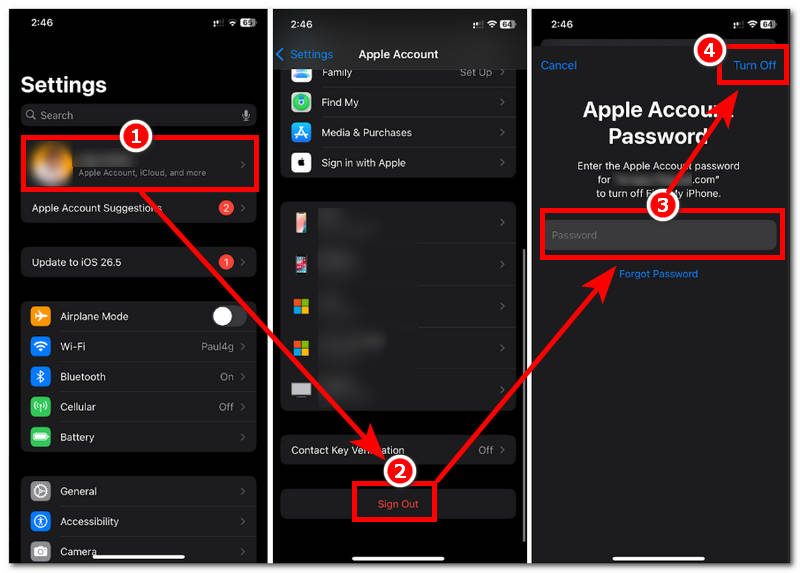
Step 1. To sign out of your Apple ID account from your iOS device, first head over to your device's settings
Step 2. Once you are in your device settings interface, simply tap on your Apple Account settings.
Step 3. Once you are in your Apple Account settings, simply scroll down to locate the Sign Out button and from there tap on it to proceed.
Step 4. Lastly, to successfully sign out of your Apple ID account from your iOS device, enter your password and tap on the Turn Off button to turn off your device location service. Thus, sign out of your account from your device.
Part 3. Bonus Tip: How to Completely Control Your Location on 'Find My iPhone.'
If the default methods of freezing your iOS location are not convenient for you,as each of them either prevents you from using your device productively, or prevents you from using the internet, or simply disables you from using your device, then an effective method to still freeze your location while remaining functional and usable to access various platforms from your device is to use a third-party tool that spoofs location like the AnyCoord Location Changer.
What makes this tool an amazing location changer, or rather, location freezing, is that it is lightweight on desktop devices (Windows and Mac) to ensure that it can easily run and doesn't consume much space just to freeze the iOS device location. In addition, it has many location spoofing functions that address not just location freezing but also location spoofing, routing a virtual path, location-based games, and more.
Key Features:
- • It is capable of changing a device location to any location in the world.
- • Undetectable location spoofing or a changer tool.
- • Guaranteed to work and is a safe-to-use tool for iOS and Android devices.
- • It can be used with a variety of location-based games, applications and platforms
- • Flexible mode of connection via Wi-Fi, Bluetooth, or USB.
- • Clean and organize the user interface.
How to Use AnyCoord to Freeze Location
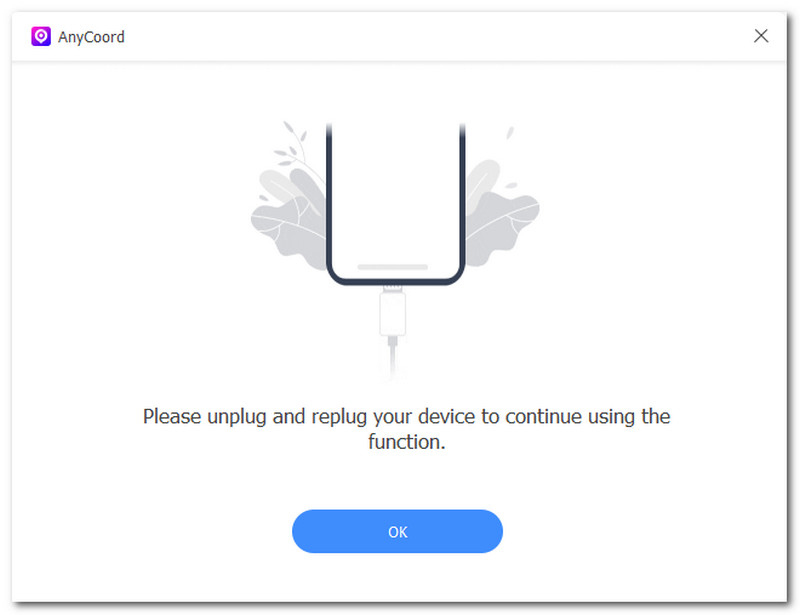
Step 1. Download the AnyCoord software tool on your Windows or Mac device. Once done, have the tool run and install from your device. After installation, open the software and connect your iOS device to your desktop via a USB connection to proceed.
100% Secure & Clean
100% Secure & Clean
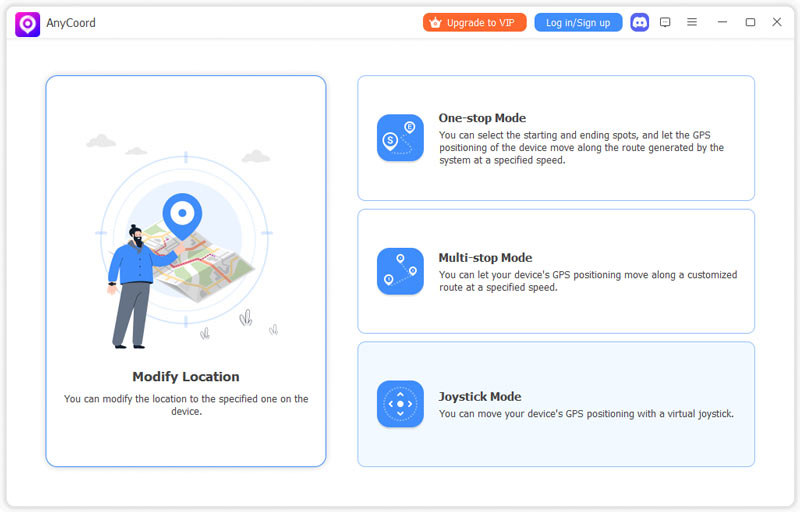
Step 2. Once you successfully connect both your desktop device and iOS device, the AnyCoord software will open a new window where all of its main functions are located. To freeze your iOS location, simply click on the Modify Location function.
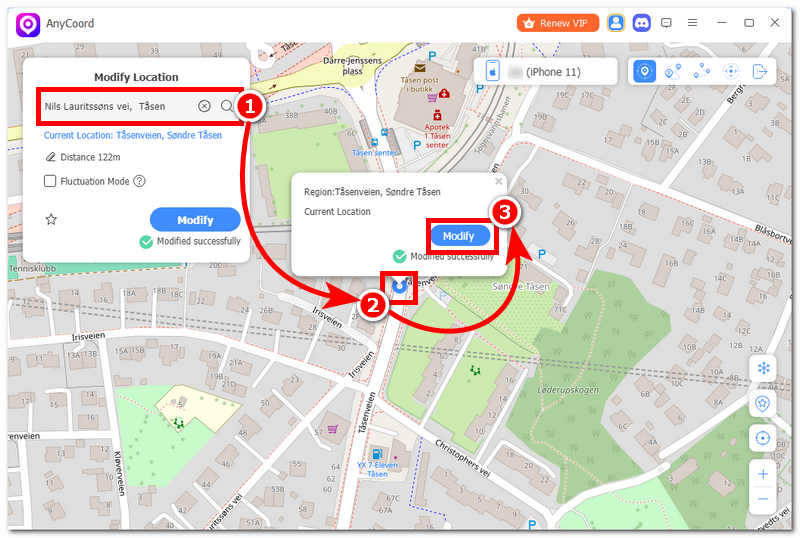
Step 3. After clicking on the Modify Location, the software will redirect you to a new window where it features a virtual map. On there, you may zoom in or out or even drag the map to any places you prefer. To freeze your iOS device location, simply use the search bar function to search for the location you wish to freeze in your iOS device.
Step 4. Once you have your location set up, click on the Modify button and just like that, the tool will then change your iOS device location to the one you just input in the tool. This will help you freeze the location in your iOS device without worrying about your real-time location being used by all the apps and platforms you use.
Part 4. FAQs about Freeze Location on 'Find My iPhone.'
Why do people want to freeze their location?
People often resort to freezing their location mainly for their location privacy. As devices, especially location-based ones, use the real-time location of the device to give the best and most accurate service, this raises concerns for some users who don't like their location to be actively used.
Will turning off my phone keep my location fixed?
Yes, turning your device will keep the last location it received and turning it on will update its location to the new location.
Can Find My show an incorrect location?
Occasionally, yes, especially under circumstances of device-poor internet connectivity. As the location needs to be accurate and real-time, the use of the internet only makes it possible to display the accurate location. Having weaker connectivity will result in a location latency update or an incorrect one
Conclusion
The freezing location on Find My iPhone may not turn out how some users expect it to be, as Apple prohibits altering or spoofing real-time location, as this can affect the device's location services. However, there can still be other methods one can opt for in an attempt to temporarily have a 'freeze' effect on their iOS device in default ways by maximizing their device functions, which this article listed above if users are in need of freezing their iOS device location while still being able to use the internet and access location-based applications, then they need to use a third-party location spoofing tool like AnyCoord for that matter.

AnyCoord is the best tool to change, hide, or spoof your location in games, social media apps, and other apps on iPhone or Android devices.
100% Secure & Clean
100% Secure & Clean