


AnyCoord Location Changer
iOS 26/27 & Android 16 Supported
- No jailbreak to set a virtual GPS location/routes.
- Smooth control with 360° joystick or keyboards.
- Pro Game Mode supporting Bluetooth connectivity.
- Apply for AR games/social media/dating/map apps.
100% Secure & Clean
100% Secure & Clean

30M+Global Users
120+Countries served
100%Clean & Safe

 4.8
4.8 3 Effective Ways to Change Country in Google Play

Edited by Caroline Ryan | Sep 11, 2026 | Virtual Location
Changing your Google Play country can give you access to apps, games, and other content that may not be available in your current region. However, Google places certain restrictions on changing your Play Store location, such as a 12-month time, Google Family. Payment method, etc. So, the change may not always be available in your account.
If you're wondering how to change your Google Play country, this guide covers several methods you can try. It offers the official Google Play method first, then explores alternative options for changing your location.
Contents:
- Why Can’t I Change My Google Play Country?
- Comparison: 4 Ways to Modify Google Play Location
- Method 1. Change Country via Google Play Settings
- Method 2. Change Google Play Country by Pro Location Changer
- Method 3. Modify Google Play Region with a New Account
- Method 4. Change Country through Proxy Server
- FAQs about How to Change Google Play Store Region
Why Can't I Change My Google Play Country?
You may not be able to change your Google Play region because:
- You changed your country within the last 12 months.
- You’re not currently located in the new country.
- You haven’t added a payment method from the new country.
- You’re part of a Google Family group.
- Your Google Play country hasn’t updated yet – it can take some time to take effect.
- Your Google Play country is different from your Google Account language or your phone’s region settings.
Comparison: 4 Ways to Modify Google Play Location
| Ways | Best for | Limits |
| Change Country via Google Play Settings | Users who meet Google’s official requirements and want to change their Play country directly | Must be in the new country and have a local payment method; wait a long time |
| Modify Google Play Region with a New Account | Users who want to use another country’s Play Store without changing their main account | Requires a separate Google account; the target region still depends on Google’s requirements |
| Change Country through Proxy Server | Users who want to route their internet connection through another country | A proxy only changes your IP address and cannot guarantee a Google Play country change |
Method 1. Change Country via Google Play Settings
How to change country in Google Play Store? You can change a country by relying only on your Android’s Google Play setting. Google Play determines the availability of the kinds of applications and games a user can download based on their current location. They make sure that when users raise such concerns, they can hopefully resolve them on their own.
Please note that when changing a country in the Google Play setting, users are required to patiently wait for about 12 months after they create a payment profile before they can change their Google Play country by themselves. If users fail to establish a payment profile within Google Play, they cannot use the steps below.
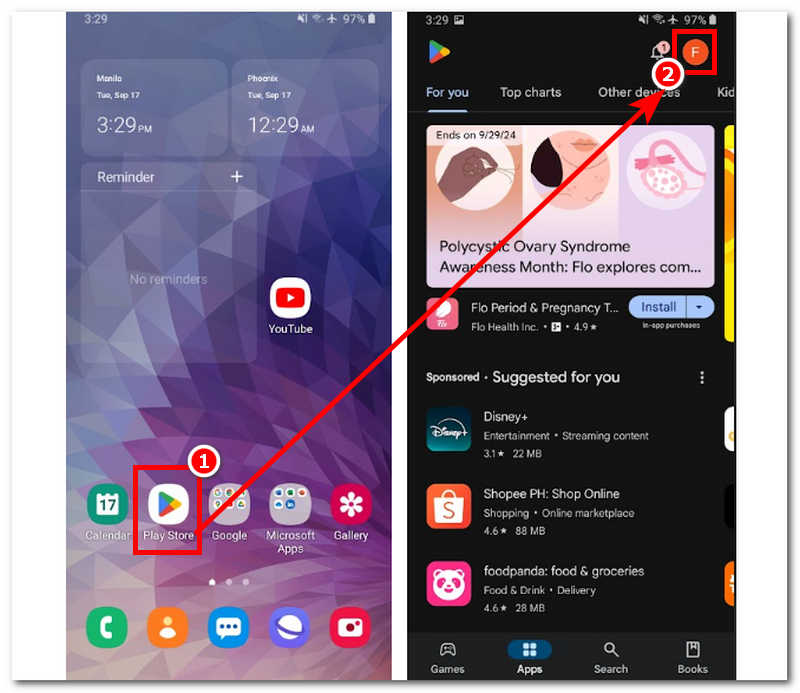
Step 1. Open your Google Play Store app on any of your Android devices.
Step 2. Click on your profile icon located at the top-right part of your screen.
Step 3. Follow this navigation to access the Country and profile settings: Settings > General > Account and device preferences > Country and profile
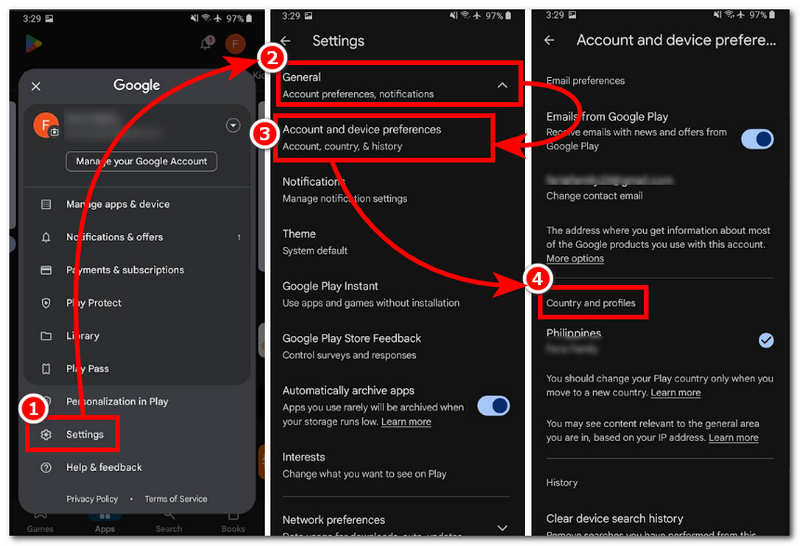
Step 4. Proceed to tap on the country you want your Google Play to be based on and follow the on-screen instructions that will appear. You have successfully changed your Google Play country.
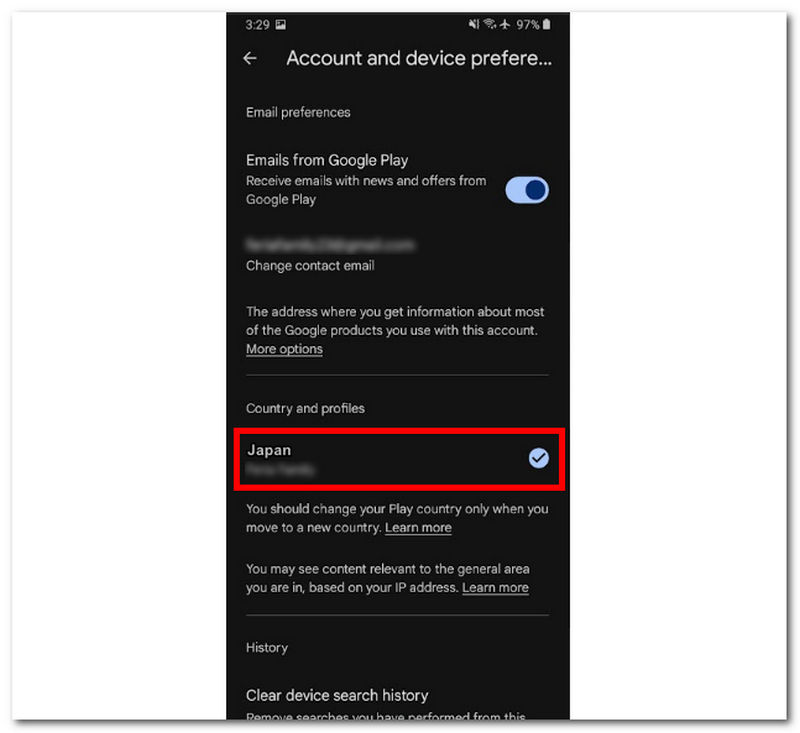
Note: The changes in your Google Play account will take around up to 2 days before your new country is used in your profile.
Method 2. Change Google Play Country by Pro Location Changer
Software
When users cannot wait for up to 48 hours of waiting time just for them to update their country in Google Play, they might want to check out other ways of doing so. Ones that don’t require waiting time, ones that can instantly change country within a span of few clicks, ones that have tons of features as a software-based tool and can let you switch to different countries anytime without restriction. AnyCoord is the perfect tool for you. Right off the bat, this software can instantly modify one's location, perhaps country, most efficiently. This is because the tool is built with the most accurate technology to pinpoint locations and areas that other tools don’t recognize, making it a kind of tool with a broad scope of map coverage worldwide.
Moreover, with AnyCoord, users don’t need to update their payment profile in their Google Play as the tool is a third-party software that doesn’t adhere to Google Play terms and conditions. Thus, it can also be used for Android, iOS, and desktop devices. Using it is as easy as downloading location-based apps, which you can now access once you follow the steps below.
Key Features
• There is no waiting time to change from another country.
• Simple yet easy-to-navigate location changer.
• You can access those restricted apps and games in Google Play.
• It can make you move from one location to another by simulating a realistic movement to make it look like you are actually in that country, such as helping you change your location on Tinder for more dates.
• Accurate and wide-ranging support is available from countries across the globe.
• Search bar functionality for easy search of countries.
• There are four available modes to change location instantly.
Step 1. Open AnyCoord software from your desktop and connect your Android device to your desktop device using its charging cord. If you have not yet downloaded the software, click the link below to get it.
100% Secure & Clean
100% Secure & Clean
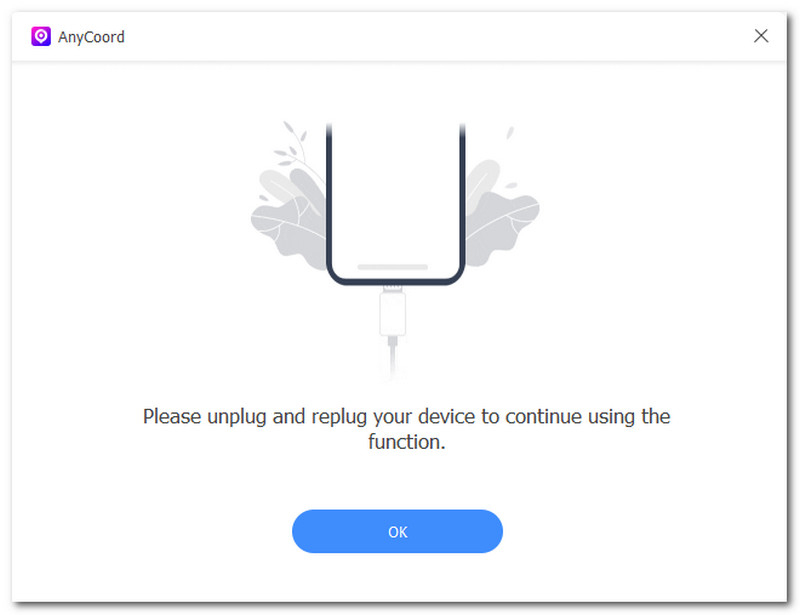
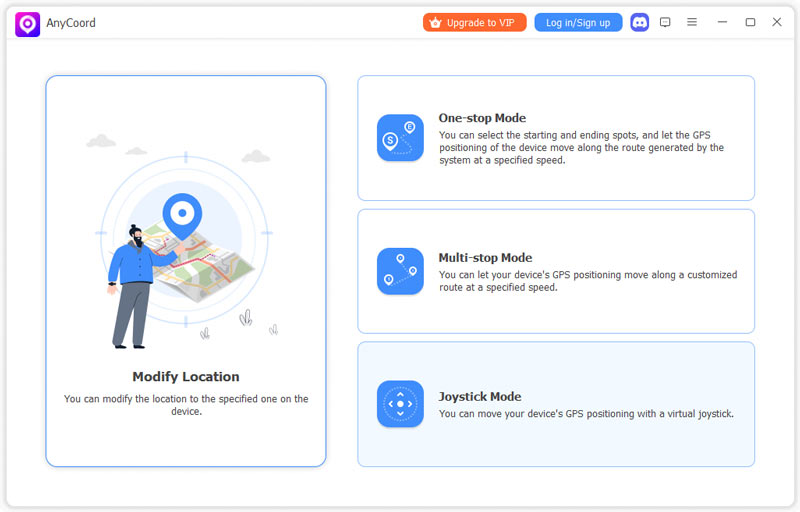
Step 2. A window with all the software's modes will appear on your screen; in this case, click on Modify Location to proceed.
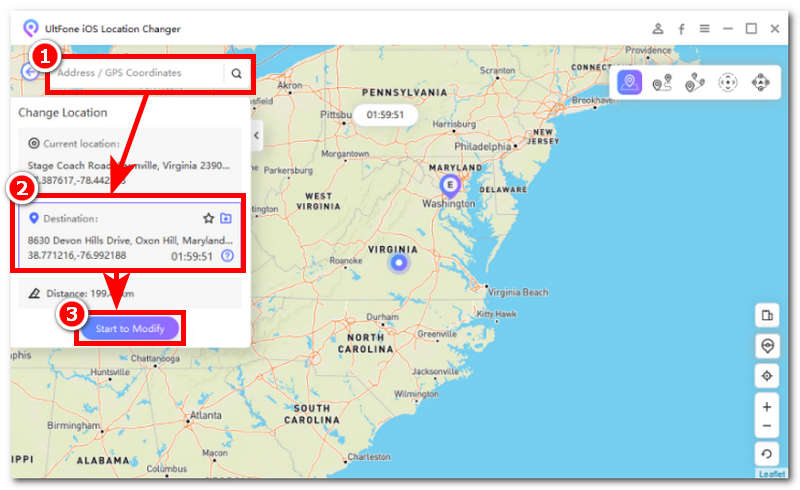
Step 3. Use the search bar to locate a country you want to use in Google Play. Once you've done this, click on Modify location to apply it to your Android device.
Method 3. Modify Google Play Region with a New Account
If you do not want to modify the Play country/region of your existing Google account, you can create a new Google account and use it as a separate Play account for the target country/region. It should be noted that Google states that the region of the new account will be associated with the region where the account was created, so simply registering an account does not guarantee obtaining Google Play in any target region.
Step 1. Create a new Google Account and actually use it in the target region.
Step 2. Open the Google Play Store on your Android phone, click on your profile picture in the upper right corner, and switch to a new account.
Step 3. Open Settings > General > Account and device preferences, check Country and profiles, and confirm whether the target country is displayed.
Step 4. If required by the system, add the payment method for that country. Waiting for updates on Play region information, Google states that the update may take up to 48 hours.
Method 4. Change Country through Proxy Server
The use of a proxy server is usually not recommended. Among the methods listed to change the country in Google Play, and considering Google’s strict policy, it is most likely that this method will not work. There is still a chance of using a server from a different country when used the right way to bypass location in Google Play. To do that effectively, use the steps listed below.
Step 1. Open the Google Play Store and look for a proxy server app that you can download to your device.
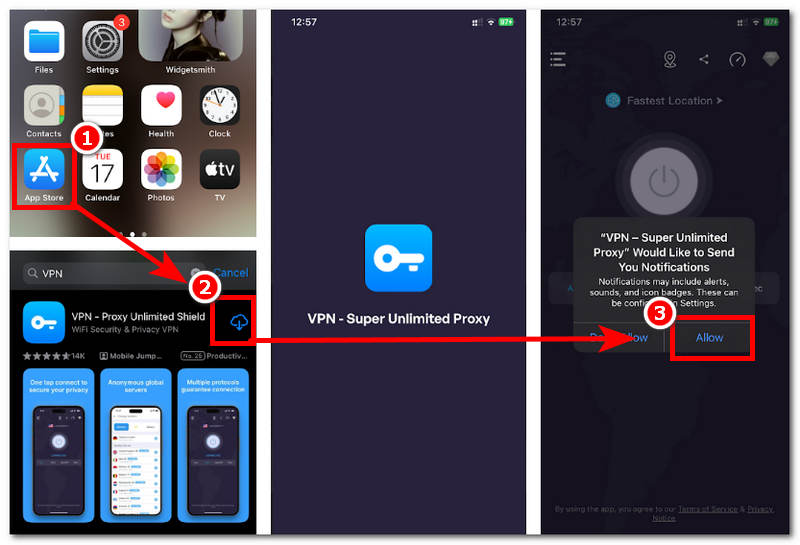
Step 2. Once installed, open the app.
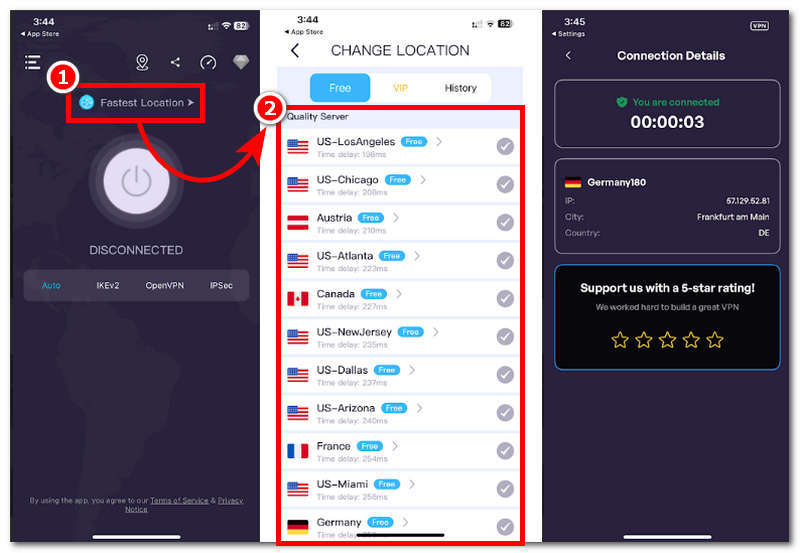
Step 3. Choose a location or country to use and register it as your current country in the Google Play Settings.
Step 4. Once you have selected a location, the connection process will begin. Just wait for it to finish. Once done, you will see the connection details telling you that you successfully connected your phone to a server and that it is now using your chosen location.
FAQs about How to Change Google Play Store Region
-
1Why can't I change my country on Google Play?
You cannot change your Google Play country in your settings because the terms and conditions state that users who don’t have a payment profile or have failed to update their payment profile before switching to a country are not allowed to change their country. This can hinder and affect all the user's subscription and payment transactions within the current country.
-
2Why can't I change country in the App Store?
Another reason users can not change their country in the App Store is that they have an active subscription, like store credit and family subscription. That alone is a significant factor in why you cannot simply change location; thus, using third-party software like AnyCoord is your go-to to avoid those restrictions; it also can change the location of some location-based games, like Pokémon Go.
-
3How do I change my Google Play account?
Open the Google Play Store and tap your profile, which is located in the upper-right corner. Click the arrow-down button beside your profile; from there, tap Add Another Account to add your other Google Play account to your device.
Conclusion
To change Google Play country, it is best for users to go for the legal method through the Google Play setting first, as this will determine if the account is eligible for countries. Thus, if users find it impossible as they have this restriction imposed by Google, that’s when they can resort to using AnyCoord to seamlessly change their device country without updating their payment profile and having users wait for at least 48 hours to reflect the new country in their settings. Enjoy unlimited access to location-based games and applications with AnyCoord today, and never settle for waiting time and a low success rate just for you to access them.
AnyCoord is the best tool to change, hide, or spoof your location in games, social media apps, and other apps on iPhone or Android devices.
100% Secure & Clean
100% Secure & Clean