



Share Location on iPhone Via Text, Maps, Find My App & More

Edited by Caroline Ryan | Dec 23, 2025 | Virtual Location
With current technology, it is possible to do anything with only our compact, handy mobile device, from texting your family and friends who live across the world to updating them on your current whereabouts. Whether you’re planning your next vacation or simply letting people know your whereabouts for safety or other reasons, you can do so easily on your iOS device.
There are so many ways a user can share location on iOS, whether via text message, the Maps app, or the ‘Find My’ app. This article will demonstrate how you can do it effortlessly. Moreover, you will also find a few things or two about when there’s a need for sharing location with others, as well as using a third-party tool to share your location discreetly.
Contents:
Part 1. When Do We Need to Share Location on iPhone?
Sharing a location with others requires a level of trust that one can only achieve under exceptional circumstances. Some reasons for sharing location include meeting a friend or family member in an unfamiliar place, sharing location for reassurance, and real-time coordination of directions. While some used this functionality to let the other person know their current whereabouts, whether for meet-ups or navigation, others also used it for safety reasons. Just like most mobile devices, iOS has plenty of ways for users to be able to share location using iOS devices, hence making it a lot more doable for their end.
People don’t just share personal information, such as location, with other users for no reason, so please, before doing so, be sure to share your location only with your close relatives or someone you know to avoid being tracked or used by unknown users.
Part 2. How to Share Location on iPhone Via A Software Tool
Sharing a location is usually not something one can do confidently, especially for those concerned about their safety. For whatever reason, users may still be able to share a location on an iOS device with others, but not fully reveal their real-time location by using a third-party location spoofing tool for a mobile device, such as the Anycoord software. This location spoofing tool is a lightweight desktop app that maintains a user-friendly interface, allowing users to easily, quickly, and free of charge spoof, change, and simulate location on their mobile devices (Android and iOS).
Key Features
• Clean and safe location spoofing tool.
• Lightweight on users’ desktop devices and supports location spoofing on all mobile devices.
• Has a wider range of support for location-based services, apps, platforms, and games.
• Guaranteed to hide the user’s real location data.
• Seamless location spoofing to any location across the world.
• Capable of allowing users to simulate virtual movement to mimic a human-like travel route.
• The travel speed can be customized for a more human-like walking speed.
• Features instant location teleport and multiple location stops.
Steps to Use AnyCoord
Step 1. Download and install the AnyCoord software tool on your desktop device (Mac or Windows).
100% Secure & Clean
100% Secure & Clean
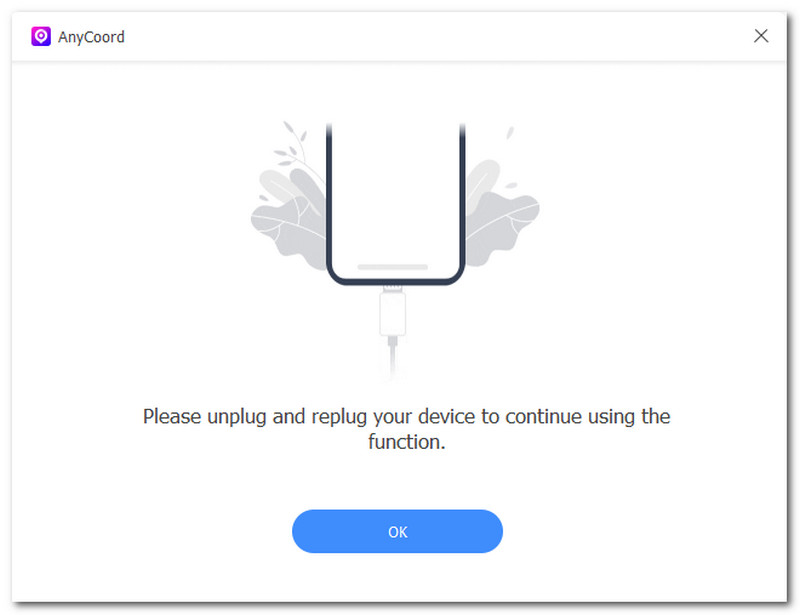
Step 2. Once the software installation is complete, connect your iOS device to your desktop using a cable. After connecting your device, you can open the software.
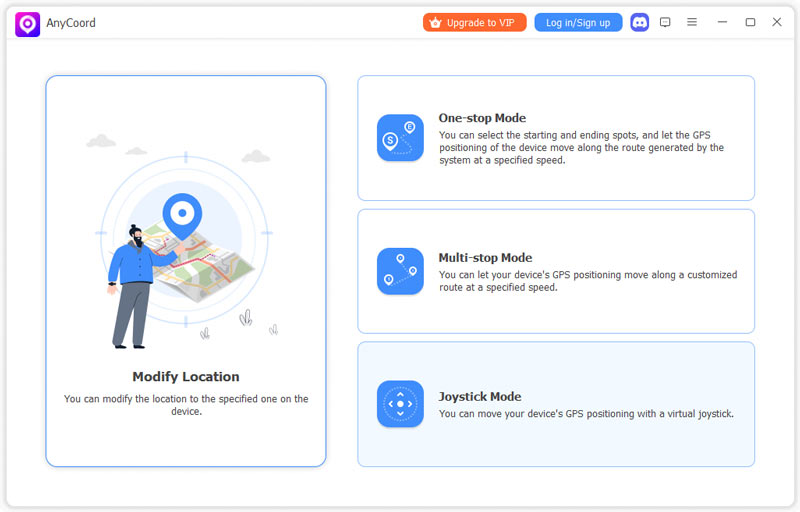
Step 3. On the software’s main interface, to spoof your iOS device’s location, simply select the Modify Location option. Within the Modify Location option, you will see a virtual map where you can drag to find a location you want to use on your mobile device.
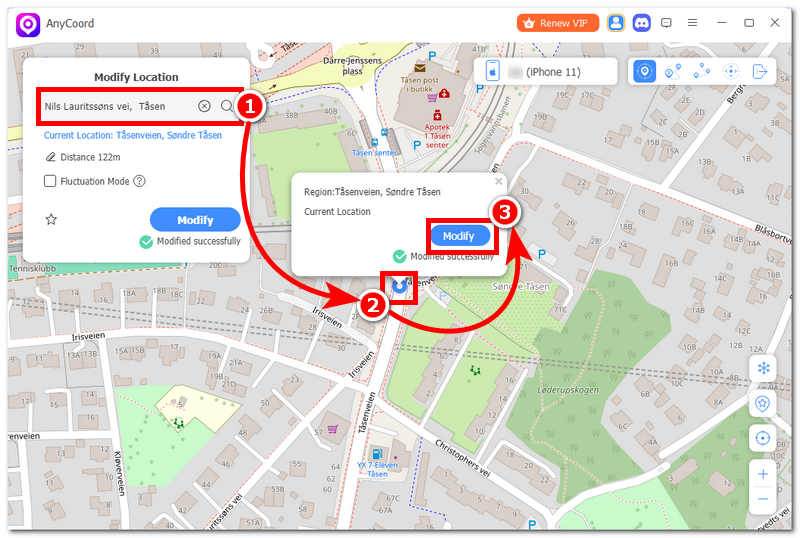
Step 4. Once you have your ideal fake location for iOS location spoofing, click the Modify button to start the spoofing. Once spoofing your location is complete, you can use your iOS device to share your location with others. The location they will see is the one you set up virtually with AnyCoord, so you are still guaranteed to keep your real location hidden.
Part 3. How to Share Location on iPhone Through Text Message
Sharing of iOS location through text messages is one of the fastest and easiest default methods to share your live location with another person. The limitations of this method are that users cannot set a duration when sharing their location, so they can see your location even if you forget to stop sharing it in the messaging app. Another is that sharing location via text message requires users to depend on a stable signal, so an unstable signal may result in both users failing to receive accurate location data.
Step 1. To send a location via text on iPhone, first open the Messages app and choose the person from your contact list you want to share your location with.
Step 2. Next, open a chat with the person you want to share your location with. After that, simply tap the + button, then tap the Location section to send your location via text.
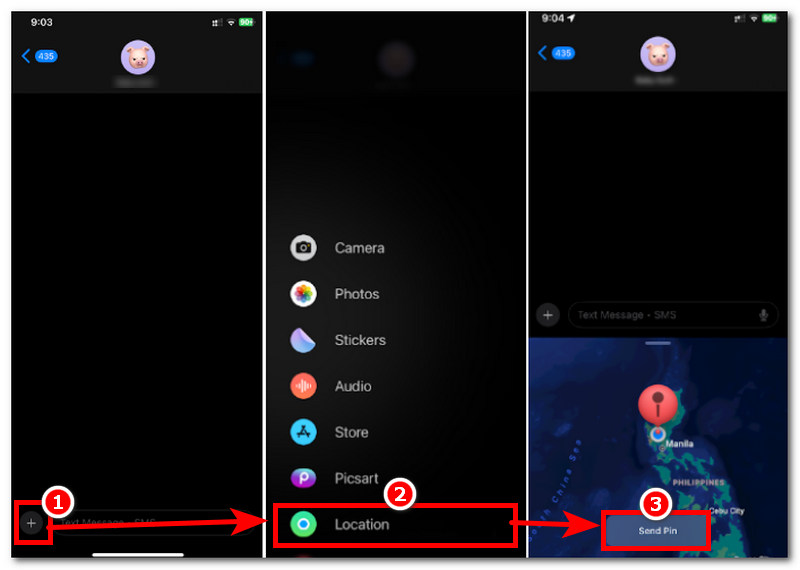
Step 3. Finally, tap the Send button on your screen, and the other person can now see your location.
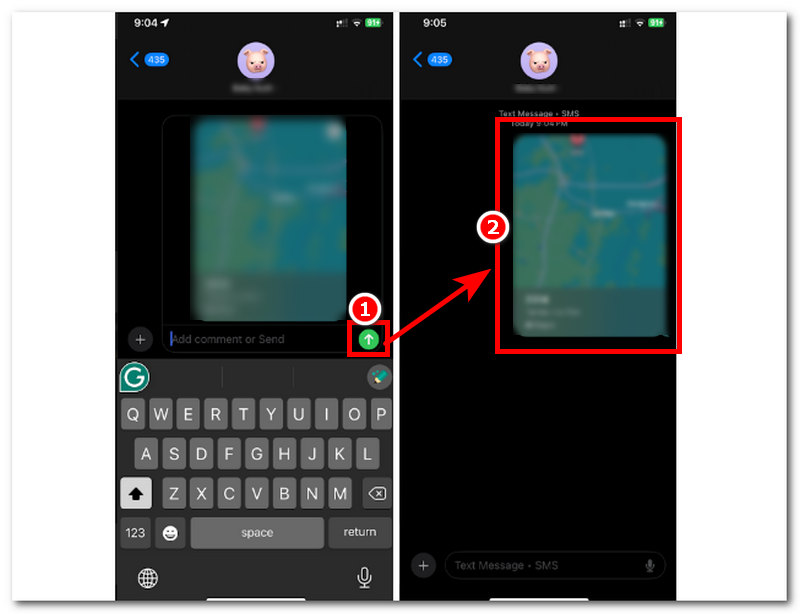
Part 4. Share Location on iPhone using the Maps App
How to share my location on iPhone using Maps? Another method iOS users can use to share their location is through their iPhone’s built-in map app, which lets them quickly create a location pin or get directions, making it an ideal app for sharing their location with others. The limitations of this method are that it can only share a static location, so users cannot view the sender’s real-time location, and it does not update the pinned location over time. Another is that location sharing through the Map app is limited to certain features, such as being used only, and users cannot set or send timed location sharing.
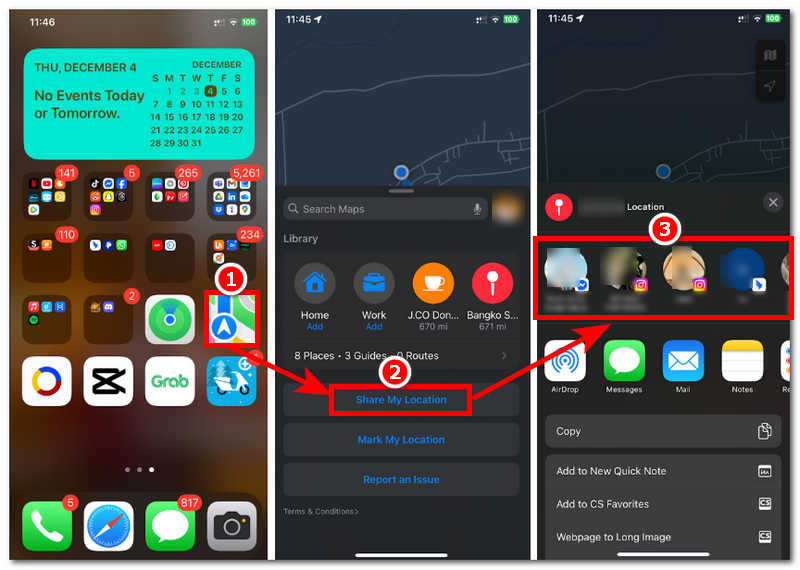
Step 1. Using your iOS device, open your iOS Map app.
Step 2. Once you are in the Maps app, scroll up the menu to access the share location feature.
Step 3. Tap the Share My Location button, and the app will then show you a list of your contacts. From there, simply choose which users from your contact list you want to share your location with.
Part 5. Share Location on iPhone With ‘Find My’ App
Another default method iOS users can use to easily share their location with others is to use Apple’s Find My app. This app is known for iOS device location sharing and real-time tracking, making it a perfect way to share your location with other iOS users. However, this method has the limitation that it is exclusive to Apple users, so you cannot use it with Android users. Apart from exclusivity on the Apple ecosystem, sharing of location using the Find My app is not ideal for iOS users, as this can drain their battery a lot faster, as the app will need internet access and location services enabled all the time, which is not ideal when users want to share location for an extended period of time.
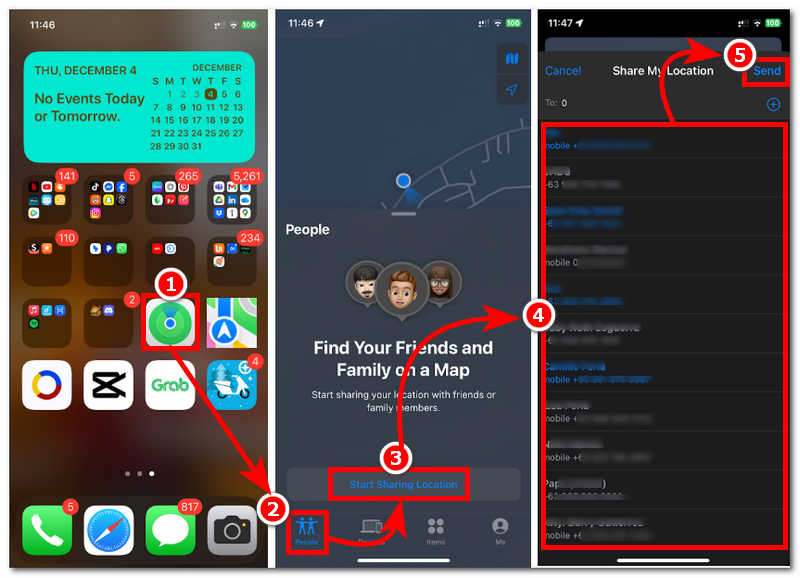
Step 1. Open the Find My app on your iPhone.
Step 2. In the Find My app main interface, go to the People section, then tap the share location feature.
Step 3. Tap on the Start Sharing Location button, and the Find My app will then redirect you to your contact list.
Step 4. From your list of contacts, select the person (s) you wish to start sharing your location with, then tap the Send button to send them your location.
Part 6. FAQs about Sharing Location on iPhone
Why can’t I share my location on iPhone ?
There are a lot of factors that are behind why users can’t share their iPhone location, and among them is that their device location services are disabled, or their device just doesn’t have a stable connection to share and update their location.
What’s the difference between Send My Current Location and Share My Location?
The difference between the two is that Send My Current Location refers to sharing a one-time location, which means it doesn’t update or show the user’s real-time location; it shows only the pinned location. Share My Location, on the other hand, continuously shares the user’s location, so every time the user moves from one spot, it is visible to others.
Does sharing my location drain battery?
Yes, especially when you share your iOS location via the default method, which uses your device’s internet connectivity or mobile data, as it keeps the app or service running in your device’s background, which, for long-term location sharing, is not advisable.
Conclusion
This article has illustrated why users need to share iOS location, as well as when to do so, via our curated, step-by-step process in two categories: a default and the use of a reliable third-party location spoof for iOS devices. Moreover, as sharing location is a truly helpful tool, especially for navigation and reassurance from loved ones, it is also important for users not to just share their location easily, especially with strangers, to avoid conflicts with safety and location data.
AnyCoord is the best tool to change, hide, or spoof your location in games, social media apps, and other apps on iPhone or Android devices.
100% Secure & Clean
100% Secure & Clean